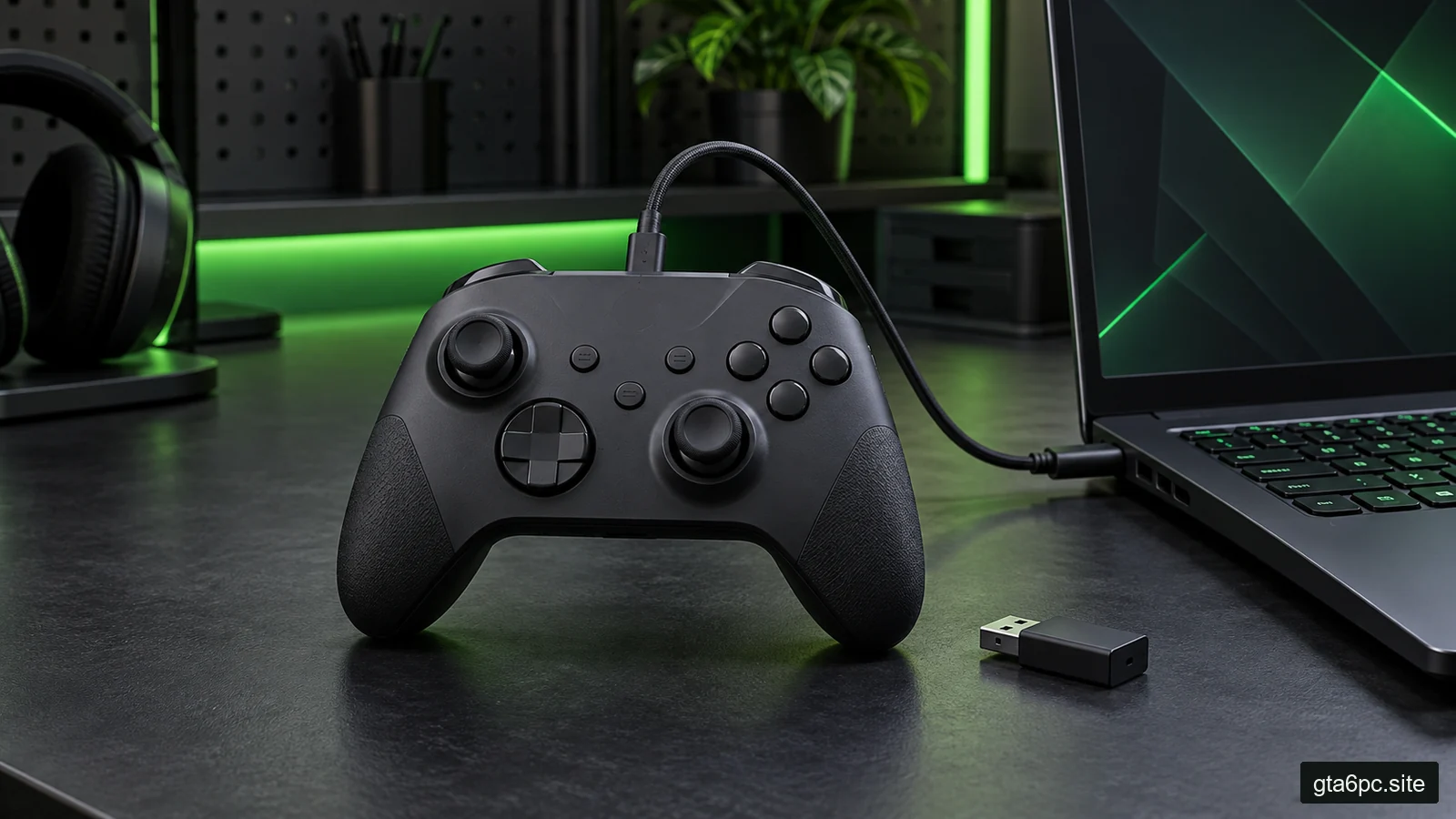
Find which part of the chain is failing
To test a PC controller, check the connection, check the inputs, then check what the game does with them. Those are three separate jobs. A light coming on proves much less than a button responding correctly in a game.
A controller may be paired with Windows but not send useful inputs. It may pass a Windows test but use the wrong Steam layout. It may work in one game and fail in another because their controller support differs.
Start with one pad, a simple connection and a game you already own that supports it. You can often fix the problem without buying another controller or downloading a new collection of drivers. This guide does not promise a controller model or feature will work in GTA VI on PC. Check the actual game’s published support information when making that decision.
Identify the model and its supported connection
Look for the complete model number on the controller, packaging or official manual. Similar-looking pads can use different connection methods. A wireless pad might use Bluetooth, its own USB receiver or another supported wireless system. Some devices offer several modes selected by a switch or button combination.
Use the manual for that model to choose its PC mode. A pad set for a different device can appear under a different name or send inputs a PC game does not expect. Record the original mode before changing it.
If you own an Xbox controller, the official Xbox connection guide is a useful place to check which connection applies to your model. For another brand, use that maker’s equivalent guide rather than copying an Xbox pairing sequence.
Also separate controller support from accessory support. A pad working wirelessly does not automatically prove its headset jack, lights, extra buttons, vibration or other features behave the same over every connection. Check the particular feature you intend to use.
Make a simple wired baseline where supported
A supported USB connection is often a useful starting point because it removes battery charge and wireless pairing from the first test. Use a known data-capable cable. A cable that charges a device may not carry data, and a damaged data cable may work only intermittently.
Plug directly into a normal PC USB port for this first comparison. Remove an unnecessary hub or dock from the path. This does not mean hubs are always bad. It simply removes one possible cause while you investigate.
Disconnect other pads, wheels and joysticks that are not needed. Close extra remapping applications if they are not required for the device to work. Note what you closed so you can restore your normal setup later. Do not uninstall everything or erase profiles before you know which layer has a problem.
If the controller only supports a receiver or wireless connection, use its intended method. A charging socket is not a guarantee of wired PC operation. The manual decides whether the wired baseline is possible.
Open the Windows controller test
On Windows, press Windows + R, type joy.cpl and press Enter. This opens the Game Controllers panel. Select the intended controller, then open Properties and the Test tab where those options are available.
If it is not listed, the issue may be in the connection, device mode, driver or the way this controller exposes its inputs. Check the maker’s utility too. Not every special feature appears in the older Windows panel, so absence of an extra control does not automatically mean the hardware is broken.
If the controller is listed, press one button at a time and watch for a response. Move each stick slowly through its range, then release it. Test the directional pad, triggers and stick-click buttons as well.
Keep the test simple. The numbered buttons may not match the letters printed on the pad. Some panels also show triggers or axes in a way that differs from an actual game. You are checking for repeatable responses, not demanding that this older display perfectly reproduce the controller’s retail diagram.
Test buttons in a way that exposes real faults
Use a short checklist instead of pressing everything rapidly. For each button, press, hold and release. Check whether the displayed input starts once, stays active during the hold and stops after release.
Try a few normal repeated presses. A button that sometimes misses a deliberate press deserves closer attention. A test that ignores a very quick tap might also reflect how the test samples input, so confirm the symptom in a supported game or the maker’s tester before declaring the switch faulty.
Test combinations you actually use. Hold a trigger while moving a stick, or hold a shoulder button while pressing a face button. If each input works alone but the combination fails, the mapping or game behavior may be involved.
Separate a double press from double movement. If one physical press makes a menu jump two places, the game may be receiving both a real controller and a virtual copy. That is an input-path problem until further tests show otherwise. Buying a new pad does not remove two active software paths.
Test sticks, triggers and return to center
Move each stick slowly in a circle and through the main directions. Check that it reaches the expected range in the tester and returns near its resting position after release. Repeat from different directions.
Small variations around the center do not automatically mean the pad is unusable. Controllers and software use tolerances and dead zones. A dead zone is the small movement area ignored around the center so minor resting noise does not move the camera or character.
What matters is whether the stick creates unwanted movement during real use, how much dead zone is needed to stop it and whether the behavior is getting worse. A stick that remains visibly far from center after repeated release is more concerning than a tiny changing number in a tester.
For triggers, check a slow press and release. In a game that supports gradual trigger input, confirm that you can control the action smoothly. A tester can show a combined axis or a different scale, so do not read a particular number as a universal pass threshold.
Use Steam’s input test next
In the desktop client, open Steam > Settings > Controller. Select the controller if more than one device is shown. Look for the current input-test control, commonly labelled Test Device Inputs, and start the test. The wording can vary with the client version and detected device.
Repeat the same button and stick checklist. Steam seeing and testing the pad narrows the problem, but it still does not prove that every game receives the intended layout.
Check the detected name. A remapping tool may expose a virtual Xbox-style pad while the real device is a different model. That can be deliberate. It also means you may be testing the translated device rather than the physical controller’s unmodified output.
If the Windows and Steam tests disagree, close optional remapping software and reconnect using the same connection. Test again before changing game settings. The comparison is useful only if you know whether you are looking at the physical pad or a virtual replacement.
Understand the input layers without learning a new language
The path can include several layers:
- The physical controller sends a button or stick position.
- Windows and its driver expose the device.
- An optional tool or Steam Input changes or translates that input.
- The game applies its own bindings, sensitivity and dead zones.
Steam Input can translate a controller action into gamepad, keyboard or mouse input. That is helpful for some games. It can also explain why a stick moves a cursor, why a button appears as a keyboard key or why the on-screen button prompts change.
Use the game’s official layout or a simple appropriate template as your starting point. A community layout can contain hold actions, double presses, alternate layers and keyboard mappings you do not expect. Read its description before testing it as if it were a plain pad layout.
Extra back buttons need special attention. Some controllers assign them to copies of existing buttons rather than exposing them as independent inputs. The correct test depends on how the maker designed them. Do not assume every rear paddle should appear as a new numbered button in Windows.
Check one game with a clean layout
Choose a game whose published PC support covers your intended controller path. Use a quiet practice area or offline mode when available. Do not diagnose a new mapping in a live competitive match.
Open the game’s control settings. Check whether it expects gamepad input, whether the right layout is selected and whether an old custom binding remains. Record or export settings where supported before resetting them.
For a Steam game, the game’s Properties include controller settings that can affect Steam Input for that title. Use the publisher’s recommendation as your starting point. Some games work best with their native support; others need a translation path for your model.
Change that per-game option alone, relaunch as needed and repeat the test. Do not change the global setting, per-game setting, third-party remapper and in-game bindings together. If it starts working after four changes, you still do not know which change mattered or whether you created another problem.
Diagnose double inputs and wrong buttons
If menus jump twice, the camera moves while navigating menus or button prompts flicker, check for overlapping paths. You may have both Steam Input and a third-party tool sending translated input, or the game may receive the physical and virtual pads together.
For the test, choose one supported route and close the optional extra translator. Restart the game so it detects the intended device arrangement. Keep required accessibility or device software in mind rather than removing it blindly.
If buttons seem swapped, compare the physical button labels, test-panel numbers and game action names. They are different descriptions. A layout designed around Xbox labels may use different letters from another brand’s face buttons.
A wrong action only inside one game usually directs you toward that game’s bindings or its selected Steam layout. A consistently wrong response across several test tools points earlier in the chain. A pad that works on another PC is useful evidence about the first PC’s setup, but it is not a guarantee that every cable or mode on the first PC is fine.
Distinguish stick drift from a mapping problem
Put the pad on a stable surface without touching the sticks. Observe the tester, then the game. Does the camera or character move by itself? Does the direction stay the same? Does reconnecting or changing the layout alter it?
Repeat over the supported wired and wireless paths if possible. If resting movement appears repeatedly in a simple device test and in several games, a physical or calibration issue becomes more plausible. If it appears only with one custom layout, inspect that layout first.
A modest dead-zone adjustment can stop small unwanted movement, but it also makes the start of intentional movement less sensitive. Raise it only enough for a comfortable result, and compare aiming or steering afterward. There is no single dead-zone percentage that fits every controller and game.
A large dead zone can hide a worsening fault while making control feel poor. It does not repair the stick. Check warranty or repair options before opening the pad, spraying cleaner inside or replacing parts on a guess.
Calibration is model-specific
Calibration teaches supported software how to interpret a control’s range or center. It is not the same as repairing a worn mechanism, and the Windows panel does not offer the same options for every device.
Use the manufacturer’s current instructions or a supported calibration function. Follow its required stick and trigger movements carefully. Save the original settings or note how to reset them before you begin.
Do not repeatedly calibrate a disconnected or badly seated cable problem. Likewise, avoid using a calibration procedure written for another model simply because the controls look similar. If the utility reports failure or the symptom returns immediately, document it and ask support about the cause.
Some games apply their own dead zones and sensitivity after the controller’s software does. A correct device calibration can still feel different across games. Test the complete path you plan to use, not only a satisfying circle in a tester.
Compare wireless with the supported wired path
If wired use is stable and wireless use disconnects, focus on battery charge, pairing, receiver placement and the PC’s wireless support. Move nearer for a comparison and remove unnecessary obstacles without changing game settings.
Try the maker’s recommended pairing process. A controller may reconnect to another previously paired device, so check where it is actually connected. Use the intended receiver where required; a generic Bluetooth adapter is not a substitute for every wireless system.
Note when disconnects happen. Only after sleep? Only through a dock? Only when the cable moves? Those details are more useful than “wireless is bad.” If a USB connection drops when the connector moves, investigate the cable or port before treating it as a Bluetooth problem.
Feeling a delay is not a reliable latency measurement by itself. A game’s frame delivery, display settings and connection all affect the experience. If the whole game stutters, use the frame-time guide before blaming controller radio delay.
Update carefully and stop adding random tools
Check the manufacturer’s official firmware and support utility when its guidance addresses your issue. For Xbox models, use the current Xbox instructions for the supported update method. Follow the required connection and power steps, and do not interrupt an update.
Obtain drivers from Windows Update or the PC, adapter or controller maker as appropriate. A site promising a universal controller driver pack is an unnecessary gamble. The safe PC downloads guide helps you verify the source.
Do not install several input wrappers in succession while leaving each active. Each one can add another virtual device, profile or startup task. If a particular game needs a tool, choose it for a clear supported reason and keep a simple record of its purpose.
A full Windows reinstall is rarely a useful first controller test. You can gather much better evidence with another supported cable, a direct port, the maker’s tester, Steam’s test and one known game.
Finish with a result that names the failing layer
Write a small outcome: “All inputs work wired in Windows and Steam, but this game’s custom layout sends keyboard keys.” Or: “The right stick moves by itself in two testers and two games, even with the simple wired path.” These statements lead to different fixes.
If everything works, keep the comfortable layout and stop changing it. If only the connection fails, work on that route. If a physical control fails across clean tests, repair or replacement becomes a sensible option.
Before buying a new pad for a particular game, check its store listing and support claims. A controller test can prove how your equipment behaves today. It cannot promise features, compatibility or button prompts for a game whose PC support has not been established.
Sources and references
- Microsoft: identifying a controller in the Windows Game Controllers panel. This is laboratory documentation; its lab setup is not required for the home checks above.
- KOEI TECMO: Windows and current Steam controller test menus. Its game-specific troubleshooting choices are not universal settings for every title.
- Valve: Steam Input settings for players.
- Valve: how Steam Input can map controls to gamepad, keyboard and mouse inputs.