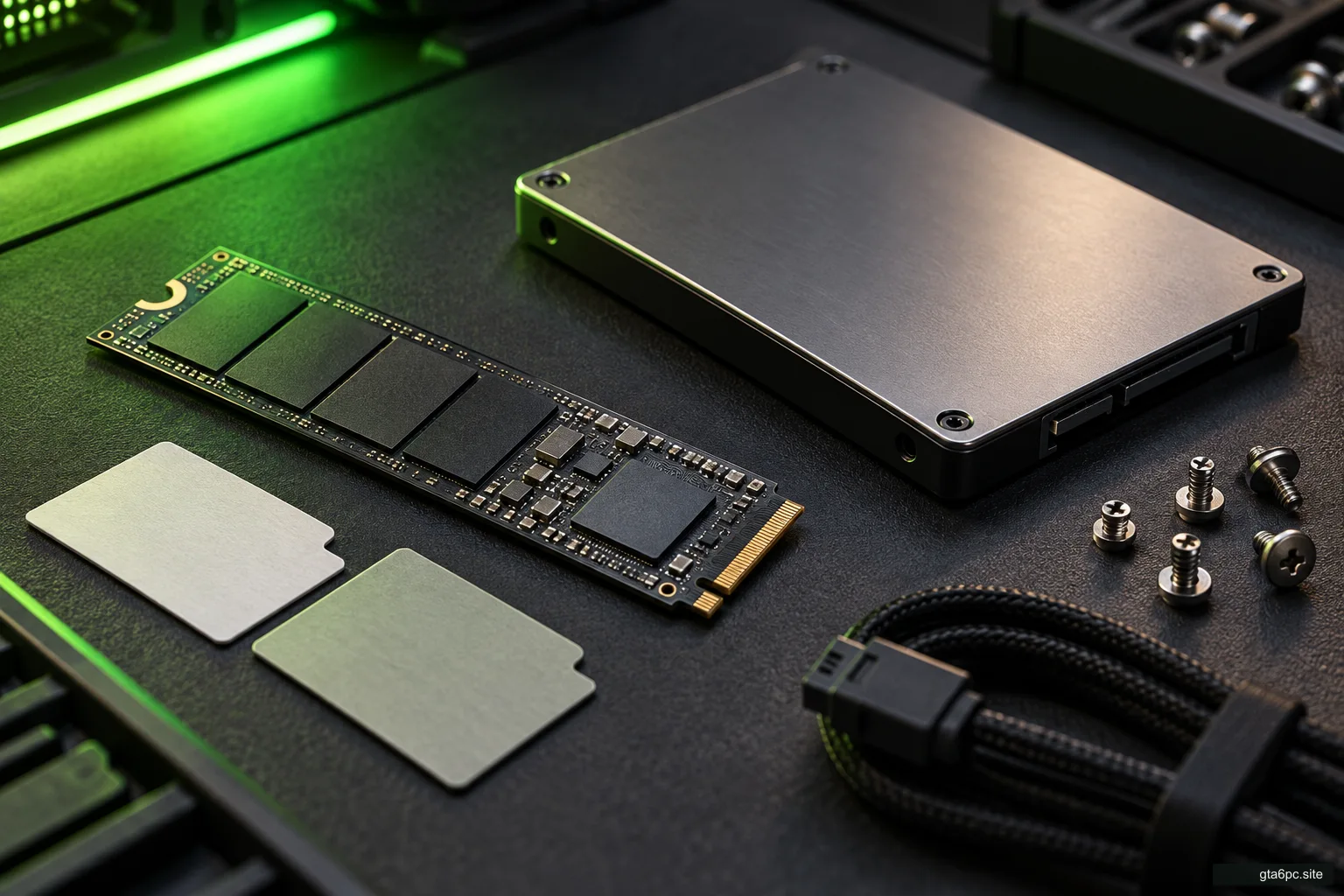
Plan SSD space for games without guessing GTA 6's install size
Check the right drive, separate active games from archives, plan update room and choose a supported storage upgrade without inventing GTA 6 requirements.
Read the workshop noteTHE SETUP BENCH
A compact inventory and a realistic storage plan remove friction from your next PC decision.
Use Windows information and exact hardware labels to record the relevant parts. Add the monitor target and present problem beside the model names.
Record your PC specs ↗Separate your active library from archives and keep a chosen margin for ordinary use. Free space belongs to a particular volume, not an abstract total.
Plan the library ↗Test a future-game allocation as a user scenario. Changing an assumption changes the balance; it does not change a game’s official requirement.
Work through the storage budget ↗Record your machine, the experience you want and the evidence that would change your decision.
Open PC upgrade toolsCheck the right drive, separate active games from archives, plan update room and choose a supported storage upgrade without inventing GTA 6 requirements.
Read the workshop noteFind your CPU, GPU, RAM, motherboard and drives with Windows tools. Record the PSU and case details software cannot reliably identify.
Read the workshop noteUse free space, planned installs, a chosen reserve and clearly labelled scenarios to calculate whether your game library fits. Includes worked examples.
Read the workshop noteRead SSD health, wear and error reports correctly. Identify the right drive, use safe checks, understand SMART limits and know when backup or replacement comes first.
Read the workshop noteWork out whether a game download fits your internet allowance. Understand Mbps and MB/s, estimate download time, control updates and avoid wasting data on retries.
Read the workshop note
Test a controller in Windows, Steam and a game. Find connection faults, input conflicts, wrong mappings and stick drift before buying a replacement.
Read the workshop note