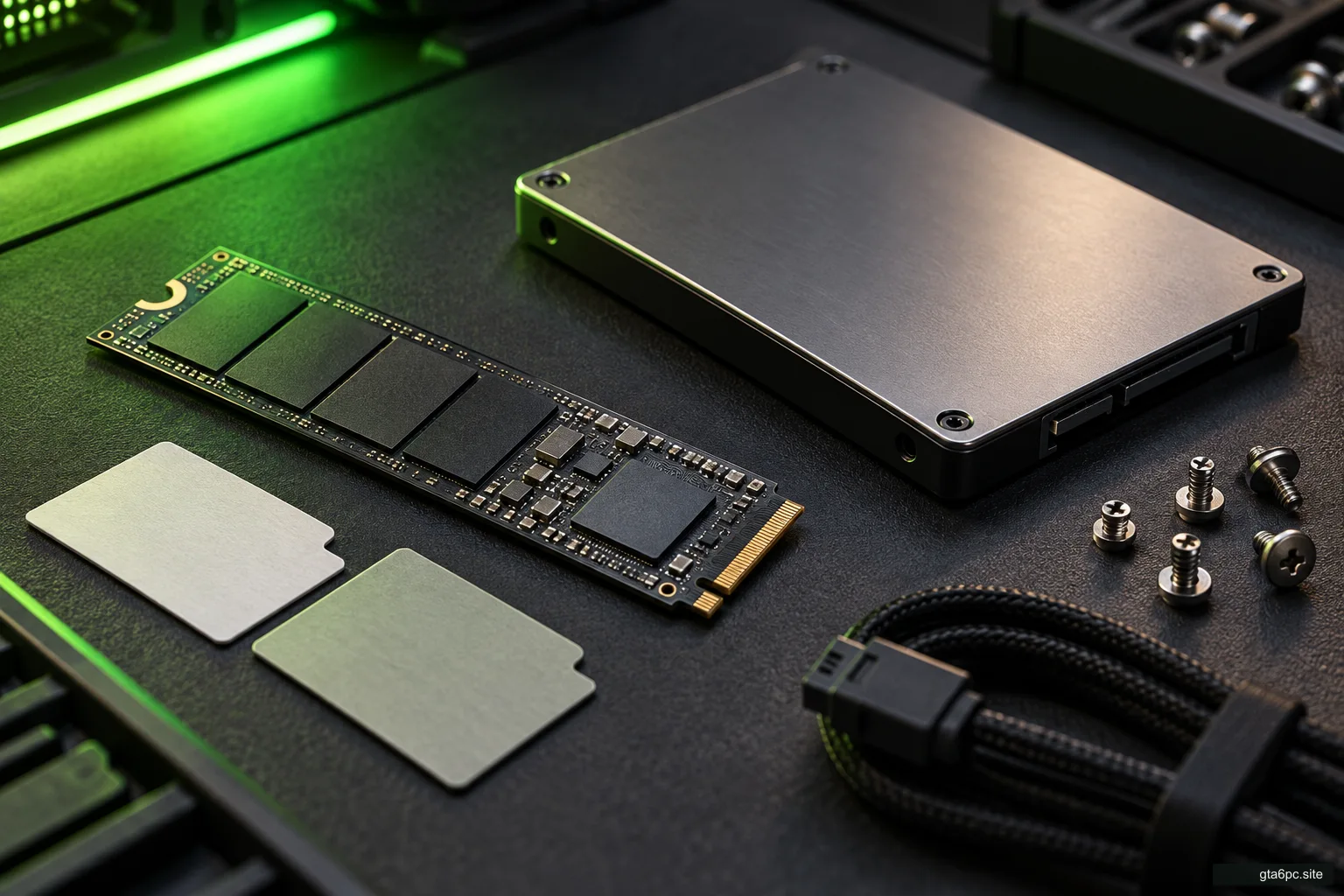
A health check should protect the files first
To check an SSD safely, identify the drive, protect anything you cannot replace, and read its health report before running heavy tests. You do not need to fill the drive, erase it or write hundreds of gigabytes to find out whether it has reported a warning.
An SSD health percentage is easy to read and easy to misunderstand. It is usually a summary or estimate based on what the drive reports. It is not a countdown to a known failure date. A drive can fail for reasons that a wear percentage never predicted.
This guide helps you decide whether to keep using the drive, watch a change, ask the manufacturer for help or replace it. It deals with health and data safety. If your question is simply how much room to leave for games and updates, use the separate storage budget guide.
If files are already disappearing, change the order
A drive that repeatedly vanishes, becomes read-only unexpectedly, reports serious health warnings or produces unreadable files needs a different response from a quiet monthly check.
Avoid installing a large game or running repeated benchmarks on it. Save the most important readable files to a separate device or suitable backup destination. Start with small, irreplaceable items such as documents, family photos and local game saves. A downloadable game library can wait.
If copying causes repeated disconnects or errors and the data is valuable, stop experimenting and ask a qualified recovery service about the next step. Recovery and repair are different jobs. Formatting a troubled drive may make it usable again in some situations while destroying the very files you wanted back.
Do not assume a cloud logo means every file has reached the cloud. Check from another device or the service’s web interface that the needed files are present and readable. A folder sync can also copy deletions. Know whether you have an independent backup or merely another view of the same current folder.
Identify the physical drive behind the letter
C: is a Windows volume, not an SSD model. One physical SSD may contain several volumes. A PC may also have several similar drives, so checking the wrong one is surprisingly easy.
Open Task Manager and look at the disks under Performance. Note the drive model and the volumes associated with it where shown. Disk Management can help connect volumes to disk numbers, but use it only to inspect. Do not click Initialize, Format or Delete Volume as part of a health check.
The PC specs guide covers identifying installed parts. Write down the SSD’s full model, capacity and connection type. For a laptop or prebuilt, note the complete computer model too. A drive supplied with the computer may have different support tools from a similarly named retail product.
Keep the serial number private when sharing screenshots. It can help support identify your device, but it is rarely needed in a public troubleshooting post.
Choose a tool that actually supports your SSD
Start with the drive maker’s official tool or the computer maker’s supported diagnostic. Download it from the real support site. Similar-looking third-party download pages can bundle extra software or provide an old release.
Check the supported models and connection requirements. A utility intended for one brand may show another drive’s model but not manage or interpret it correctly. A branded portable SSD and an internal SSD from the same company may use different software.
An enclosure can also hide information. For example, Kingston states that its SSD Manager expects the drive’s native interface and does not support USB enclosures. That does not make every SSD in a USB box faulty. It means that this particular tool is not a supported way to judge it through that connection.
If you cannot get detailed readings, record the gap honestly: “The tool sees the drive but cannot read its health over this enclosure.” Do not convert a blank field into a zero-error result. For a healthy portable drive, checking through another supported connection may be sensible. For a drive already failing, preserving data takes priority over opening hardware to satisfy a utility.
What SMART means in normal language
SMART is the drive’s system for reporting information about itself. The long name is Self-Monitoring, Analysis and Reporting Technology. You can think of it as a group of condition readings and lifetime counters, rather than one test that proves the drive is good.
Tools may show an overall status, detailed attributes, temperature, power-on time, total writes and warning fields. The exact set depends on the drive, connection and software. SATA and NVMe reports are not identical, and manufacturers may define some fields differently.
That is why a screenshot from another brand is not a dictionary for your drive. An unfamiliar raw number can be encoded differently from the number you expect. Use the supported tool’s explanation or the manufacturer’s documentation before deciding that a large value is dangerous.
Keep a dated copy of the report. Comparing the same drive with the same tool later is often more helpful than comparing today’s figure against an unrelated SSD online.
Read the wear percentage in the right direction
“Life remaining” and “percentage used” move in opposite directions. A remaining-life estimate usually falls with wear. A used-life estimate usually rises. Do not read 8% used as 8% remaining.
For NVMe, the Percentage Used field is a maker-specific estimate of endurance consumed. Microsoft documents that reaching 100 can mean the estimated endurance has been used without necessarily meaning the device has already failed. The value can go above 100.
This is useful for planning, not a reason to gamble with important files. If the maker’s tool recommends replacement or reports a serious warning, follow that guidance. If the estimate changes sharply in an unexpected way, confirm that you are reading the same drive and that the tool is interpreting it correctly before assuming months of life vanished overnight.
Wear is also not a calendar. Two drives bought on the same day may experience very different writes. A machine used for heavy recording or temporary project files can write much more than a machine used mainly for reading game files.
Read these fields as a group
| Field or message | What to ask |
|---|---|
| Overall health or critical warning | Is there an active warning, and what does the supported tool say to do? |
| Wear or estimated life | Is it used life or remaining life? Is the trend expected? |
| Spare capacity | Is the drive’s internal reserve above its stated threshold? |
| Media or data-integrity errors | Are these present, and are they increasing with symptoms? |
| Power-on hours | How much use has been recorded? This alone does not predict failure. |
| Unsafe shutdown count | Has the machine lost power unexpectedly? A historical count alone does not prove damage. |
| Temperature | Is the drive within the maker’s guidance for this model and workload? |
“Available spare” is not free space in File Explorer. It refers to internal reserve capacity used by the drive. Deleting a game frees space for files, but it does not make an internal spare warning disappear in the way emptying a folder would.
Error counters need context. Some fields record historical events, and a general error-log count is not the same as a count of unreadable user files. A change that keeps growing while the PC reports read failures deserves attention. A single number without its definition does not support a reliable diagnosis.
A simple Windows check, with clear limits
If you prefer a built-in read-only starting point, PowerShell can query physical disks and, where supported, their reliability counters. Open PowerShell. If access is denied, use an administrator session only for these inspection commands:
Get-PhysicalDisk | Select-Object FriendlyName, MediaType, HealthStatus, OperationalStatus, SizeThen request the available counters:
Get-PhysicalDisk | Get-StorageReliabilityCounter | Format-ListThese commands ask for information. They do not format, erase or write a benchmark file. Microsoft describes the reliability counters as covering matters such as temperature, errors, wear and time in use.
Some computers return incomplete values or cannot expose the counters for a drive through their storage controller. A missing temperature is not evidence that the SSD is cold. A general Healthy status is not a full specialist report. Use the supported manufacturer tool if you need more detail.
If several drives are present, keep their identity clear. Do not copy a disk number into a repair command you found elsewhere. This inspection does not require commands that change partitions or storage pools.
Back up and prove that the backup works
A useful backup is on a separate destination and contains what you need to recover. Another folder on the same SSD will fail with that SSD. A partition on it is not an independent backup either.
Choose the recovery you actually need. A file backup may be enough for documents and local saves. A full-system backup can reduce reinstall work, but you also need its recovery instructions and any required recovery media. Store encryption recovery information safely outside the computer.
Open a few copied files from the backup destination. For a large or important set, use the backup software’s verification feature where available and practice restoring a small selection. The presence of a folder with the right name is weak evidence if its contents cannot be read.
Also find out where the game keeps saves. Some are in a user folder, some inside an application folder, and some rely on an account or cloud system. Do not assume that backing up the game’s installation folder also protects every save and setting.
What a benchmark can and cannot tell you
A speed test measures a workload under particular conditions. It does not prove future reliability. A worn SSD can still produce a fast result, while a healthy SSD can be slow during an update, a long write or heavy background work.
For a health check, avoid filling the SSD with test data. That adds writes and can leave Windows with too little room. Never use a tool’s secure erase, sanitize or format option just because it appears next to its health page.
A supported diagnostic or self-test may be useful after backup when the maker recommends it. Read whether it is a read test, a longer stress test or a procedure that changes data. A drive already dropping out during light copying is not a good candidate for repeated stress to “prove” it is failing.
If the complaint is slow game loading, look beyond health. CPU work, antivirus scanning, a nearly full drive, background updates, the connection and the game’s own files can affect loading. A green health result helps narrow the investigation; it does not automatically blame another part.
Firmware updates are a separate decision
Firmware is the drive’s built-in software. An official update may fix a specific problem, but it should not be mixed into the first health reading without a reason. Read the release notes, supported model list and update instructions.
Back up before an update. Use a stable power source and do not interrupt the process. For an OEM drive, check whether the computer maker provides the intended update. Avoid forcing retail firmware onto a model whose support path is different.
A drive that is already unreliable needs extra care. If the data has not been protected, an update attempt can add risk while you still have only one copy. Ask support how to proceed rather than assuming every new firmware is a rescue tool.
Decide whether to keep, watch or replace
Keep using the drive with normal backup if it has no active warning, works reliably and the supported report shows an expected trend. A healthy device still needs backup because accidental deletion, malware and failures elsewhere can also destroy files.
Watch and investigate if a counter changed unexpectedly, a tool cannot interpret the model or a symptom has appeared without a clear warning. Record the exact symptom and compare the same report after ordinary use. A computer-wide freeze is not enough by itself to name the SSD as the cause.
Prepare replacement when the maker reports serious wear or a critical condition, or when repeatable failures remain after supported diagnosis. Protect files before planning the swap. Check M.2 compatibility if the replacement is internal, including whether the slot uses SATA or NVMe and which physical length fits.
Avoid turning an uncertain health percentage into an expensive emergency purchase. Equally, do not keep irreplaceable files on a warning drive because it still launches one game. The sound decision comes from the report, symptoms, trend and cost of losing the data together.
Make your next check easy
Save the date, model, tool name, overall status, wear estimate and any warning or error that matters. Note whether there were symptoms. That small record is enough to make a later comparison meaningful.
You do not need to stare at the health number every day. Check after a real symptom, a relevant support notice or at a sensible maintenance interval for your use. Keep the backup current in between.
The best outcome is not a perfect-looking percentage. It is knowing which drive you checked, what its report actually means, where your recoverable files are and what would make you act. That gives you a calmer and much safer basis for the next storage decision.