An M.2 drive can fit the shape and still be incompatible
To choose an M.2 SSD, check the drive type, physical size, exact slot support and installation conditions. Seeing “M.2” on both products is not enough.
M.2 describes a physical format. SATA and PCIe identify different connection arrangements, while NVMe is a storage protocol commonly used by PCIe SSDs. A slot may support only particular types. A drive fitting the connector does not prove the computer can use it.
Start with the exact motherboard or complete computer model. Find its manual and storage section before ordering. This guide helps you read those details without turning an SSD’s advertised speed into a compatibility promise.
It also does not say which drive GTA VI will require. That needs a verified PC specification, covered by the requirements guide.
Find the right manual and slot
For a self-built desktop, record the motherboard’s full model and revision where relevant. For a laptop or prebuilt, use the complete computer model and service documentation. Similar names can describe different internal layouts.
Locate the storage diagram. Slots may be labelled M2_1, M2_2 or something else. Identify the slot you actually plan to use. Do not assume the second slot has the same support as the first.
Write down the supported drive types, lengths, connection speed and any footnotes. Also note whether the slot is already occupied and which installed drive it holds.
The PC specs tutorial helps identify the current storage. If you cannot connect a Windows drive letter to a physical device, resolve that before planning a replacement.
Separate SATA M.2 from PCIe NVMe
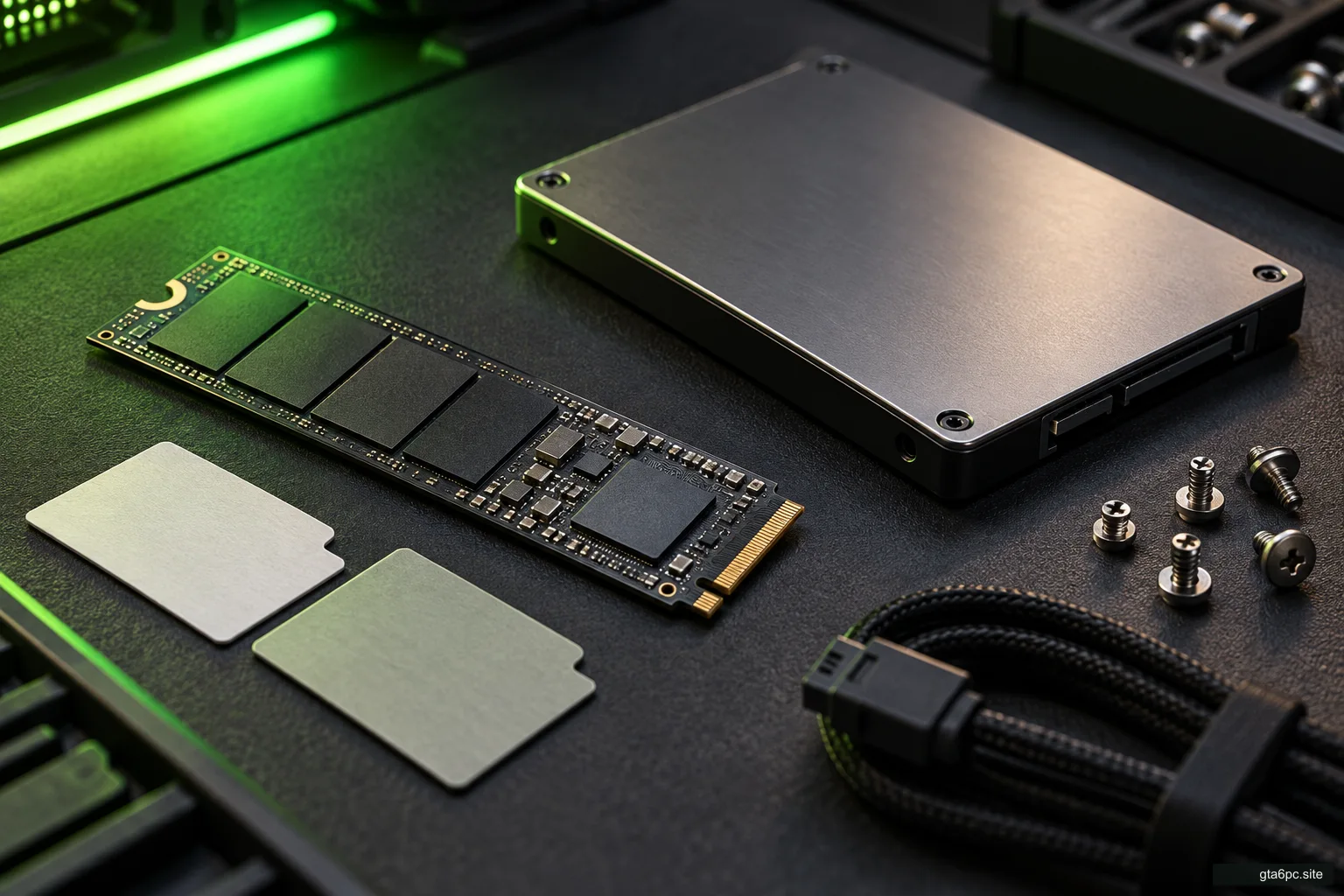
An M.2 SATA SSD and an M.2 PCIe NVMe SSD can look similar, but they use different interfaces. The slot must support the type you choose.
A SATA M.2 drive in a PCIe-only slot is not made compatible by its familiar size. The reverse mismatch also needs attention. Some slots support more than one type; others do not. The manual settles the question.
Connector notches, called keys, help define physical and electrical arrangements, but they are not a complete buying method by themselves. A photograph showing a similar notch cannot replace the documented support check.
If a listing says only “M.2 SSD” without identifying the interface, find the manufacturer’s full specification. Missing information is a reason to clarify the product, not assume it is NVMe.
What does 2280 mean?
M.2 size codes describe width and length. 2280 means 22 mm wide and 80 mm long. Other lengths exist, so your slot needs the correct supported mounting position.
A 2280 drive cannot be treated as interchangeable with every shorter drive simply because both use M.2. The computer needs room for the board and an appropriate fixing point.
Check the standoff, screw or tool-free mount supplied by the motherboard or computer maker. Do not leave the drive unsecured or improvise pressure against another component.
Laptops may also have thickness or layout restrictions. Single-sided and double-sided drives can have different clearance needs. A drive with a large desktop heatsink may not suit a laptop even when its underlying format is supported.
| Detail | Where to find it | Why it matters |
|---|---|---|
| Interface | SSD specification and slot manual | SATA and PCIe support must match |
| Length | SSD size code and mount positions | The board must fit and be secured |
| Thickness | SSD design and computer clearance | Chips or heatsink may interfere |
| Slot identity | Motherboard diagram | Different slots can have different support |
| Shared resources | Manual footnotes | Another port or device may be affected |
PCIe generation and lane limits
A PCIe SSD’s headline speed assumes a suitable connection and test conditions. The actual path includes the SSD, motherboard slot, processor or chipset and other platform limits.
Where the supported combination allows it, a newer PCIe drive can operate at the connection’s supported lower speed. Do not assume the box’s maximum throughput will appear in an older slot. Check the specific platform and drive guidance.
Lane count matters too. A slot with fewer supported lanes can limit the connection. Some slot capabilities also depend on the installed processor. Read the CPU-related footnotes rather than treating the board’s largest number as available everywhere.
Compatibility and performance are separate conclusions. A drive may work correctly without reaching its advertised maximum. That can still be a good upgrade if capacity or replacing an unsuitable current drive is the real benefit.
Read every shared-port footnote
Some boards share resources between an M.2 slot and SATA ports or other expansion connections. Installing a drive in one configuration can disable a port or change another slot’s operation.
Look for wording such as “when this slot is populated” or a table relating slots and ports. Match it to the exact slot and drive type you intend to use.
For a hypothetical example, the manual says that using one M.2 slot in a specified mode disables one SATA port. If your existing drive uses that port, it may disappear after the change. That does not automatically mean the drive failed; the planned configuration changed its connection.
The effect is model-specific. Do not assume every M.2 installation disables SATA, or that every board shares resources in the same way. Record the actual footnote and inspect existing connections before installation.
Check heatsink and access before buying
A motherboard may provide its own M.2 heatsink. The SSD may be sold with a heatsink attached. Check whether the combination is intended to be used together rather than stacking parts because both are available.
The computer’s clearance may rule out a tall accessory. A graphics card can sit over a slot and make installation more involved. Plan the supported removal and reinstallation sequence if access requires it.
Follow the product instructions for thermal pads and any removable protective film. Do not remove labels or covers unless the maker’s installation procedure requires it.
Cooling needs depend on the drive and system. A visible heatsink is not a universal sign of a better purchase, and a bare drive is not automatically unsuitable. Judge the supported arrangement and expected workload.
Decide whether this is expansion or replacement
Adding a supported drive to an unused slot can create more library space while leaving the current system drive in place. Replacing the only drive creates a migration or reinstall task.
Check capacity support and the destination plan before buying. Will games be moved through the launcher? Will Windows be cloned or installed again? What files need a separate backup?
A cloning plan depends on the tool, source layout, destination capacity and computer arrangement. Do not assume every one-drive laptop can hold both drives internally during migration. An enclosure or another supported method may be needed.
Keep data recovery and important files separate from the game library budget. The storage planning guide helps decide what belongs on each drive.
Installation checks that prevent avoidable damage
Shut down, disconnect power and use the computer maker’s access and component-handling procedure. M.2 storage should not be installed or removed while the machine is running.
Use the documented insertion angle and mounting method. The drive should sit correctly on its supported fixing point. Do not force it into a mismatched connector or bend it down against an incorrect standoff.
After assembly, check the firmware or operating system view appropriate to your setup. If an existing drive is missing, inspect the shared-resource conditions and connections before concluding it failed.
If a new disk appears as unallocated, identify it carefully before any formatting or initialization. Those actions affect data. An old disk with important files should not be formatted just because it lacks the drive letter you expected.
A complete worked compatibility note
Imagine a desktop owner planning a library expansion. Their note says: “Exact board model confirmed. Intended second slot supports PCIe NVMe and 2280. Existing slot is occupied. Manual’s port-sharing note checked against current SATA connections. Board heatsink arrangement confirmed. New drive will be a separate game-library destination.”
That is a useful note even without choosing a brand or price. It identifies the supported path and the work remaining.
Now imagine a laptop owner whose service manual supports a shorter drive and limited thickness. A popular 2280 SSD with a large heatsink may be the wrong purchase despite its attractive speed. The computer’s actual support wins over popularity.
Use the upgrade comparison to include adapters, migration equipment or installation help in the total cost. A cheap drive can become an expensive path if those needs are discovered late.
Should you buy the fastest supported SSD?
Not automatically. Decide whether the goal is more room, a better storage workflow or faster performance in a task you can measure. A high sequential speed does not describe every game loading pattern.
If your current SSD is satisfactory but too small, a supported larger drive may provide the benefit you want without choosing the most expensive model. If a workload has a measurable storage limit, compare evidence for that workload.
Finish with a clear result: the exact SSD type and size match this slot, the other connections remain usable, and the installation plan is understood. That is the foundation for a sensible purchase. Future GTA VI requirements can then be checked separately when published.