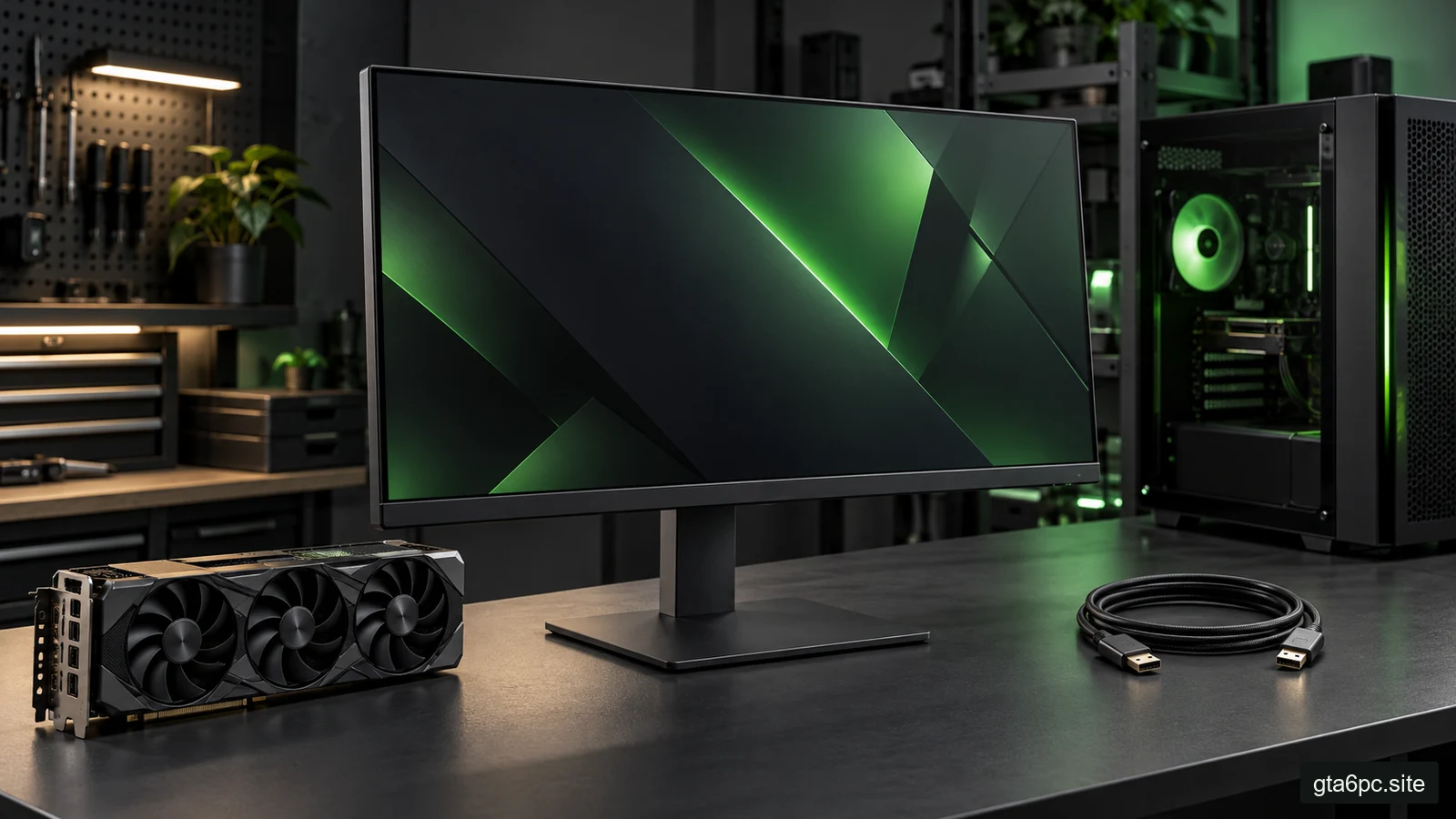
Choose the screen and the PC workload together
A gaming monitor changes what you see, how motion looks and how much graphics work you may ask your PC to do. Buying the highest resolution or refresh number without checking the rest can leave you paying for a mode you rarely use.
Start with three questions: how far do you sit from the screen, what do you do besides gaming, and what can your current PC deliver in the games you play? Then check whether the PC, cable and screen support your chosen mode together.
You do not need predicted GTA VI frame rates to make a sensible display choice. This guide uses pixel calculations and tests you can perform today. A console trailer, another game’s benchmark or a “GTA-ready” label does not establish future GTA VI PC performance.
Resolution is the grid; screen size is its physical size
Resolution describes the number of pixels across and down the image. Screen size is commonly the diagonal measurement of the panel. A bigger diagonal does not automatically mean more image detail.
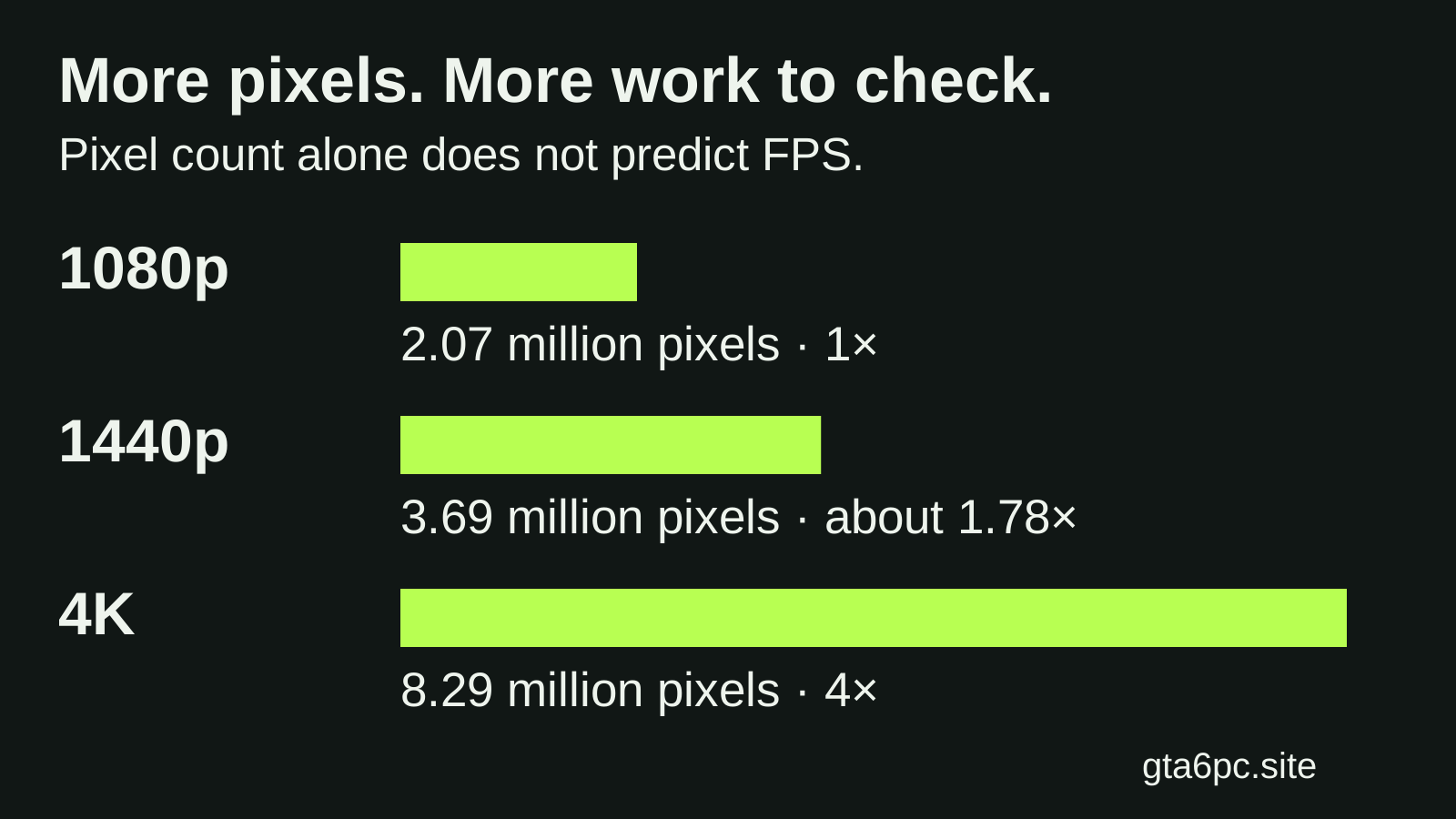
Here are common desktop formats. The numbers are exact calculations of width multiplied by height:
| Format | Resolution | Pixels in each image | Compared with 1080p |
|---|---|---|---|
| Full HD, often called 1080p | 1920 × 1080 | 2,073,600 | 1× |
| QHD, often called 1440p | 2560 × 1440 | 3,686,400 | About 1.78× |
| Ultrawide 1440p | 3440 × 1440 | 4,953,600 | About 2.39× |
| UHD, commonly called 4K | 3840 × 2160 | 8,294,400 | 4× |
Notice the ultrawide row. It has the same height as 2560 × 1440 but about 34% more pixels. A review labelled simply “1440p” may therefore describe a different workload from the ultrawide screen you want.
Four times as many pixels does not mean exactly one quarter of the FPS. Games contain work that does not scale directly with resolution, and settings can change the balance. The table is a workload clue, not a performance forecast.
Use pixel density to compare size and sharpness
Pixel density tells you how tightly the pixels are packed. It is often written as PPI, meaning pixels per inch. At a similar viewing distance, higher density can make fine detail and text look cleaner.
For a quick calculation, find the diagonal pixel count and divide it by the screen diagonal in inches:
PPI = √(width² + height²) ÷ diagonal inches.
You do not need to calculate every candidate. A few examples explain the tradeoff:
| Screen example | Approximate density |
|---|---|
| 24-inch, 1920 × 1080 | 92 PPI |
| 27-inch, 1920 × 1080 | 82 PPI |
| 27-inch, 2560 × 1440 | 109 PPI |
| 32-inch, 2560 × 1440 | 92 PPI |
| 27-inch, 3840 × 2160 | 163 PPI |
| 32-inch, 3840 × 2160 | 138 PPI |
These are geometry examples, not recommendations for a particular product. They show why a larger 1080p screen can look less crisp from the same seat, and why the same resolution can feel different at different sizes.
Your eyesight, distance and preferred text size still matter. If possible, view a comparable screen at your normal distance. Do not judge it from a photograph or a shop display running a different content source.
Work and reading may justify detail that games do not always use
If you read, edit documents or work with several windows, desktop clarity can matter for hours each day. A high-resolution panel may be useful even when you choose a lower internal rendering resolution in demanding games.
Windows scaling makes text and interface items larger without changing the panel’s physical pixels. Check whether the applications you use look good at your chosen scaling level. More pixels are not useful if everything becomes too small for comfortable reading and you do not adjust the interface.
In games, supported upscaling can use a smaller input image while sending the screen its native output resolution. That is different from assuming a 4K monitor forces every game to render natively at 4K.
You can also choose a lower output resolution, but scaling quality and sharpness may change. Test what you actually like. The graphics settings guide explains output resolution, rendering resolution and upscaling in more detail.
Hz measures the screen, FPS measures the game stream
Hertz, written Hz, tells you how often the screen can refresh each second in a particular mode. FPS is frames per second, and you must check whether a counter includes generated frames or only game-rendered frames.
A 165 Hz screen does not make a slow game produce 165 new frames. It gives the display more chances to update when the rest of the system supports useful new images.
The time between evenly spaced refreshes is 1,000 divided by Hz:
| Refresh rate | Approximate interval |
|---|---|
| 60 Hz | 16.67 milliseconds |
| 120 Hz | 8.33 milliseconds |
| 144 Hz | 6.94 milliseconds |
| 165 Hz | 6.06 milliseconds |
| 240 Hz | 4.17 milliseconds |
This table shows refresh spacing, not complete input delay. Your game, input device, rendering and display processing also affect when an action becomes visible.
The jump from 60 to 120 Hz halves the interval. The jump from 144 to 165 Hz reduces it by less than one millisecond. That does not make either upgrade pointless, but it helps you compare the extra cost with the specific improvement you want.
Measure current play before choosing a refresh target
Test the games you use at settings you would actually keep. Include a demanding area rather than only an easy benchmark. Record typical frame rates and whether the delivery remains steady.
You can use the frame-time method for repeatable comparisons. If you are considering a higher resolution, test it where your current display and game permit, or consult clear benchmarks at that exact resolution. Do not assume a scaling percentage or simulated mode reproduces every aspect of a different panel.
If your favorite current games run comfortably at high rates, a higher-refresh display may let you enjoy motion your existing screen cannot show as often. If a demanding game runs much lower, a compatible variable-refresh screen can still be useful within its supported behavior.
You may also play a mix: a demanding story game at modest rates and a lighter competitive game at much higher rates. Choose for the mix you value, rather than one theoretical future title.
Variable refresh is useful, but check its range
Variable refresh rate, or VRR, lets the display adjust its timing to incoming frames within supported limits. It can reduce tearing and uneven-looking delivery caused by a fixed refresh rhythm. It cannot make a loading pause disappear or turn low frame rates into responsive high frame rates.
FreeSync and G-SYNC-related labels describe supported ecosystems and certification programs. Check the exact monitor model and the exact input used. A feature working over one connection does not prove it works the same way over every port.
Look for the supported refresh range. A hypothetical 48–144 Hz range tells you more than a general “adaptive sync” line. Ask what happens below the lower boundary and above the upper boundary. Some supported setups repeat refreshes to handle lower frame rates, a feature often called low framerate compensation. Repetition is not a new frame from the game.
Use the GPU maker’s supported-display information and the monitor manual together. For a GeForce setup, NVIDIA’s monitor list includes the variable-refresh input and range for listed models. For a Radeon setup, check AMD’s FreeSync guidance and the display’s own specifications.
Do not assume every unlisted pairing is broken, or that every pairing is guaranteed. If support is unclear, written confirmation and a practical return option are more valuable than a seller’s casual promise.
Follow the entire connection path
Your display mode depends on a chain: the graphics output, cable, any adapter or dock, and monitor input. The weakest supported part of that chain can limit the result.
Check the manual’s mode table, not just the connector shape. A monitor may offer its highest refresh rate only on a particular input or under specific settings. Color format, color depth, HDR and supported compression can also affect which combination is available.
For a desktop with a dedicated graphics card, connect to the intended graphics output. A socket on the motherboard is a different path and depends on the system’s hardware and configuration. For a laptop, the connection may involve different internal graphics paths, so check the exact model’s documentation.
A USB-C socket is especially easy to overread. The shape alone does not establish its display features. A dock that works for office screens may not support the gaming mode or variable-refresh behavior you want. Compare the laptop, dock and monitor specifications as a set.
Certified cables help you identify supported link capabilities, but a powerful cable cannot add features missing from the devices. Buy the appropriate certification and length for the intended path. Avoid treating a version number in a shop title as complete proof.
Set the mode after connecting the screen
After connection, open Windows Settings → System → Display → Advanced display. Select the right screen if you use more than one. Check the current resolution and refresh rate, then choose a supported rate.
Read the details after the change. Microsoft notes that some rates shown in Windows require a resolution change. Make sure you kept the resolution you intended instead of celebrating the refresh number alone.
Enable the display’s supported variable-refresh option in its own menu when required, then check the graphics software. Use the manufacturer’s guidance for game-specific settings. Verify the mode again after changing cables, using a dock or reinstalling software.
If your preferred rate is missing, work through the chain: correct input, screen menu, cable, adapter, supported GPU output and current driver. Do not force unsupported custom timings as your first step. A documented supported mode should be the starting point.
Image quality does not fit into two big numbers
Resolution and Hz are easy to compare, but they do not describe all of the picture. Check motion clarity, dark scenes, brightness, glare, viewing angles and the stand. For many people, a comfortable stand and readable screen matter more every day than a small refresh increase.
Response-time claims describe how pixels change, not the entire path from your button press to the visible action. A single advertised millisecond figure also may describe a specific mode or test. Ask how motion looks at the rates you will actually use.
Overdrive settings, which try to make pixel changes quicker, can create bright or dark trails if the choice is too aggressive for the operating conditions. Try the monitor’s normal modes rather than assuming the fastest name looks best.
If HDR matters to you, compare the actual certified capabilities and supported input mode. “HDR supported” alone is not a complete account of how highlights and dark areas look. VESA’s display programs separate aspects such as HDR behavior and motion clarity, which helps you ask better questions.
Include the desk, return terms and hidden costs
Measure your desk depth, available width and the stand footprint. A larger display that forces you too close may be less comfortable than the smaller one you meant to replace.
Include any arm, cable, adapter or dock in the price. Check mounting support before ordering an arm. If you need speakers or a headphone connection, verify them rather than assuming the monitor provides useful audio.
Read the seller’s return terms and the manufacturer’s dead-pixel policy for your country and model. They are separate questions. Do not assume a particular rule applies worldwide. Keep packaging until you have tested the display within your return period.
Your first test should include ordinary reading, the games you care about, a long enough session to spot discomfort, and the specific resolution/refresh/VRR combination you bought. A successful desktop image at 60 Hz does not verify a higher gaming mode.
Three practical buying situations
A smaller budget and an existing modest PC: check whether a clear 1080p screen with the refresh and VRR support you can use solves your present needs. Spending more on resolution may push you toward another graphics upgrade before you planned it.
One screen for work and varied gaming: compare the clarity and workspace of 1440p or 4K at your chosen size, then decide what rendering compromise you accept in demanding games. A screen can add daily work value even if not every game reaches its highest mode.
Fast games are the priority: look at current sustained performance, motion behavior at those rates and input support. A large refresh headline adds little if your connection cannot enable it or your games rarely approach it.
These are decision examples, not fixed product tiers. Use current prices, exact model specifications and your own workload to compare.
Make the final choice easy to explain
A useful shortlist has a sentence for each candidate: “This screen fits my desk, makes my text clearer, supports this mode over this port, and works with my present GPU.” Add the full price and the uncertainty you still need to resolve.
If two candidates are close, choose by the improvement you will notice each day. You do not need to buy around an unverified GTA VI FPS prediction. A display that suits your current machine, work and viewing comfort has a reason to be on your desk today.
Sources and references
- Microsoft: change display refresh rate in Windows. Active mode, supported rates and possible resolution changes.
- AMD: FreeSync technology and NVIDIA: G-SYNC monitor specifications. Supported ecosystems, inputs and variable-refresh details.
- DisplayPort: official FAQ and HDMI Licensing Administrator: specification and cable programs. Connection capabilities and cable certification.
- VESA: understanding display performance programs. Distinct certification programs for image and motion behavior.