Buy for the places you will use the computer
A gaming laptop is worth considering when you need one computer in different places. A desktop is worth considering when most of your use happens at one desk and you value changing or replacing parts over time.
Neither answer depends on a slogan such as “desktop power” or “gaming anywhere.” The useful comparison is between two exact setups that meet your needs, including screens, accessories, power, noise and service.
Before looking at models, write down where you worked and played during a normal week. Count the times moving the computer would have helped. If the answer is often, portability has real value. If the answer is almost never, you may be paying for a feature you barely use.
Do not choose an expensive machine around guessed GTA VI PC requirements. You can compare current workloads, documented hardware and future flexibility today. The official requirements record is the place to separate confirmed game information from buying assumptions.
Compare complete setups, not a tower against a finished laptop
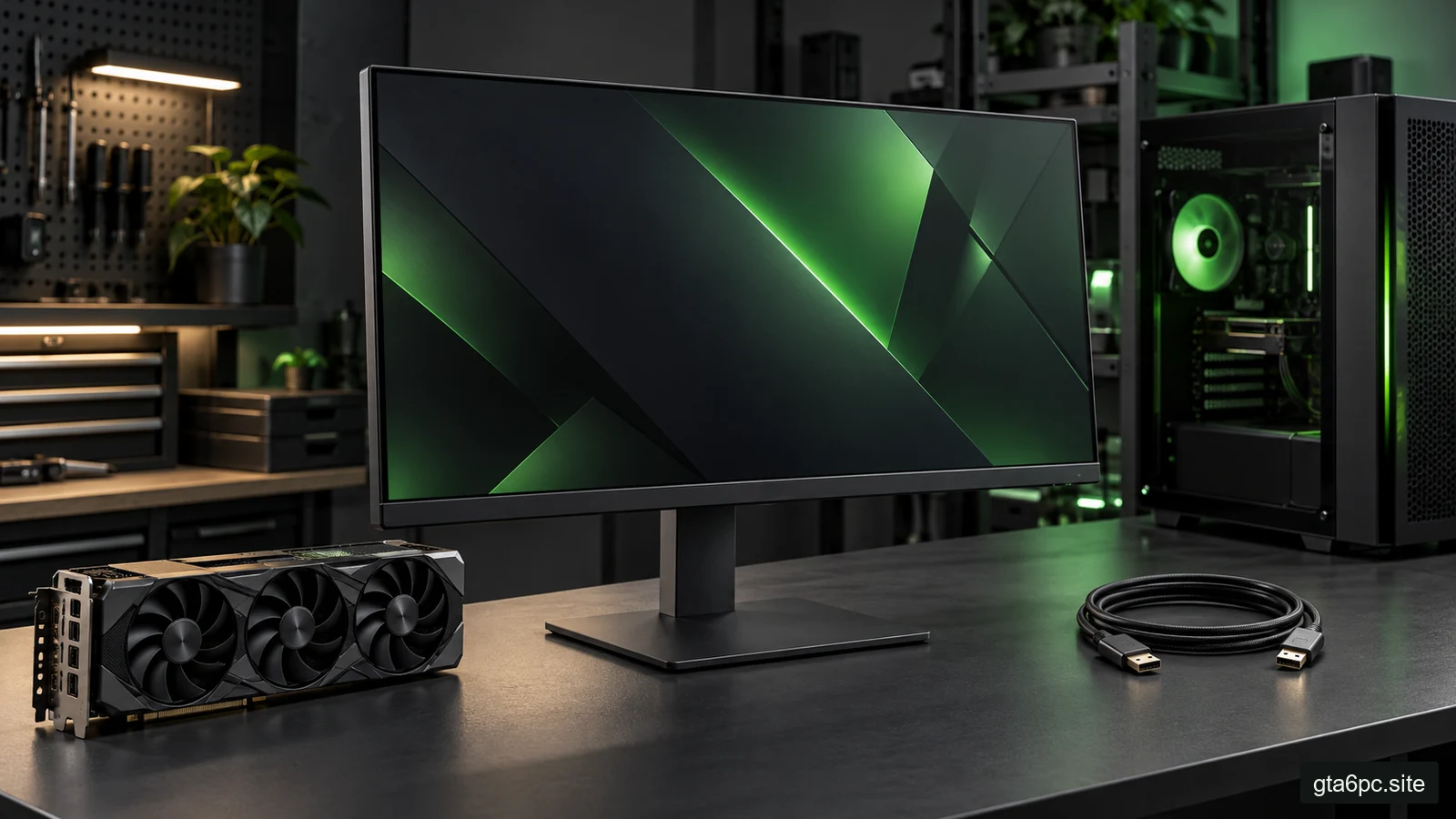
A laptop normally includes a screen, keyboard, pointing device and battery. A desktop tower is only part of the setup. If you need to buy a display, keyboard, mouse, speakers or camera, include them.
The opposite mistake is assuming a laptop’s built-in parts are all you will use. Many owners add a monitor, mouse, keyboard, stand or dock at home. Those purchases belong in the comparison too.
Use three totals: what you must spend now, what you may need soon, and what depends on an uncertain future choice. Keep them separate so an optional purchase does not quietly become a requirement.
| Cost or need | Laptop setup | Desktop setup |
|---|---|---|
| Main computer | Exact laptop configuration | Exact tower configuration |
| Screen | Built-in panel; external screen if needed | Existing screen or new screen |
| Input and audio | What you will actually add | What you will actually add |
| Connectivity | Ports, possible dock or adapters | Ports, Wi-Fi if required |
| Transport | Bag and the charger you will carry | Moving costs if relocation is common |
| Service | Local support and likely repair process | Part support and whole-system support |
A setup with a higher initial price can still be a better fit if it replaces a second computer you would otherwise need. A cheaper setup can be worse if the missing pieces keep arriving as surprise expenses.
A shared GPU name is not a shared performance result
Laptop and desktop graphics parts can use similar names while being different products. Even within laptops, the same GPU name does not establish identical sustained performance.
Look for the full laptop GPU designation and the manufacturer’s configured graphics power. That power figure describes an operating allowance, not a direct FPS promise. Cooling, CPU work, firmware, power modes and the game affect how the whole machine behaves.
NVIDIA’s laptop specifications show power ranges for laptop GPUs. Use the exact computer manufacturer’s specification to identify the configuration you are buying. A retailer title that omits it is incomplete evidence.
Compare results for the exact chassis and configuration when possible. A review of a different laptop with the same graphics label may be useful background, but it is not proof of your candidate’s speed, noise or temperature behavior.
For desktops, check the complete system too. A strong graphics card can still face a CPU-related limit, unsuitable memory setup or a restrictive cooling arrangement. The bottleneck guide helps you think in workloads instead of labels.
Long sessions matter more than a short peak
A gaming machine has to keep working after it warms up. Ask what happens after a normal session, not only during a brief benchmark.
For a laptop, compare performance and fan noise in the mode you would use. Its most aggressive mode may be too loud for a shared room, while a quieter mode may give a different result. Neither is hidden failure; they are different operating choices that you should understand before paying.
For a desktop, the larger space can allow different cooling arrangements, but the finished build still matters. Small cases, poor intake paths and unsuitable fan choices can undermine that advantage.
You do not need the coldest temperature to have a good machine. You need stable behavior within the manufacturer’s design, acceptable noise and a comfortable setup. A single temperature screenshot without the load, mode and clock behavior tells little.
If your current laptop seems much worse after warming up, work through thermal throttling checks before deciding that all laptops are unsuitable. Throttling means reducing operating speed to stay within a limit; the cause can involve setup or service as well as design.
Portability includes the charger and the place to play
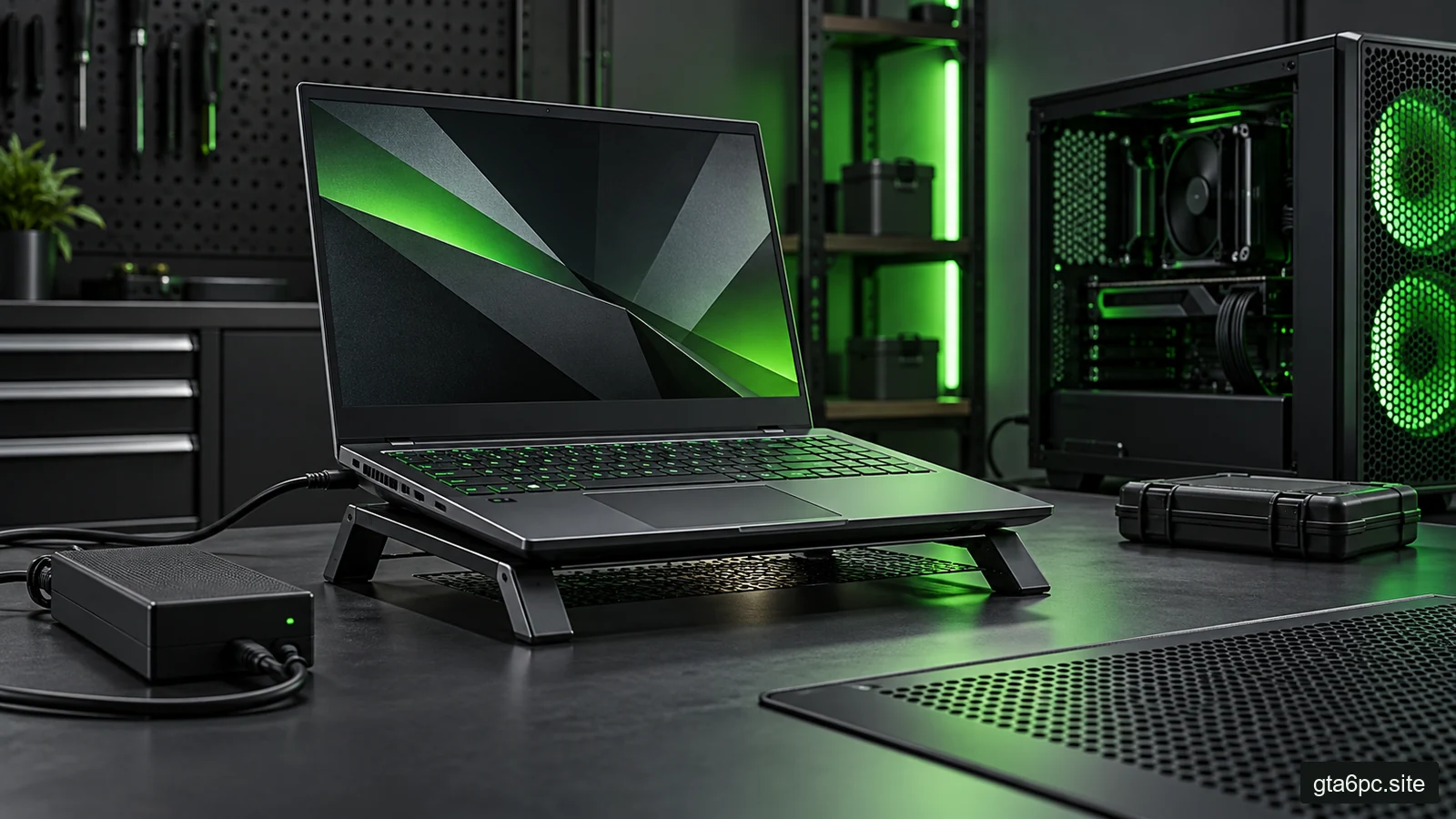
The laptop’s listed weight is not the whole bag. Add the charger, mouse, headphones and any cable you need. Then consider whether the bag is comfortable for your real trip.
Portability also does not mean every surface is suitable for gaming. You need clear vents, a stable surface and enough room for controls. A small seat, crowded table or soft bed may be a poor match for the session you imagine.
Ask where power is available. For demanding play, compare plugged-in behavior and battery behavior separately. Do not assume the performance in a plugged-in review is the performance you will get on battery.
Check charging support carefully. A USB-C socket does not by itself prove that a laptop can charge through it, and supported charging does not automatically mean full gaming power. Dell documents some gaming models whose USB-C ports do not accept charging. That example is a reason to read your exact manual, not a rule about all Dell or all gaming laptops.
If the intended charger is large, include it in your daily plan. A machine that moves between two homes with power available can be useful even if gaming on battery is not. Define the real use case rather than expecting every form of mobility at once.
Battery life and gaming life are separate questions
Battery results depend on screen brightness, refresh, applications, wireless use, power mode and workload. A long office-use claim should not become a promise of a long gaming session.
Ask for the conditions behind any battery figure. Then compare your likely use: reading and video on the move, or a demanding game without a socket? The same laptop can be suitable for the first and unsuitable for the second.
Also check the battery replacement path. Find whether the manufacturer provides service instructions, compatible replacement parts and local support. Include a possible service cost in your long-term thinking without assuming that a replacement will be needed on a fixed date.
If the computer is mainly your work machine, downtime can matter more than a small performance difference. Consider whether you have a spare device or can continue essential tasks while a repair is underway.
Upgrades: ask which parts you can actually change
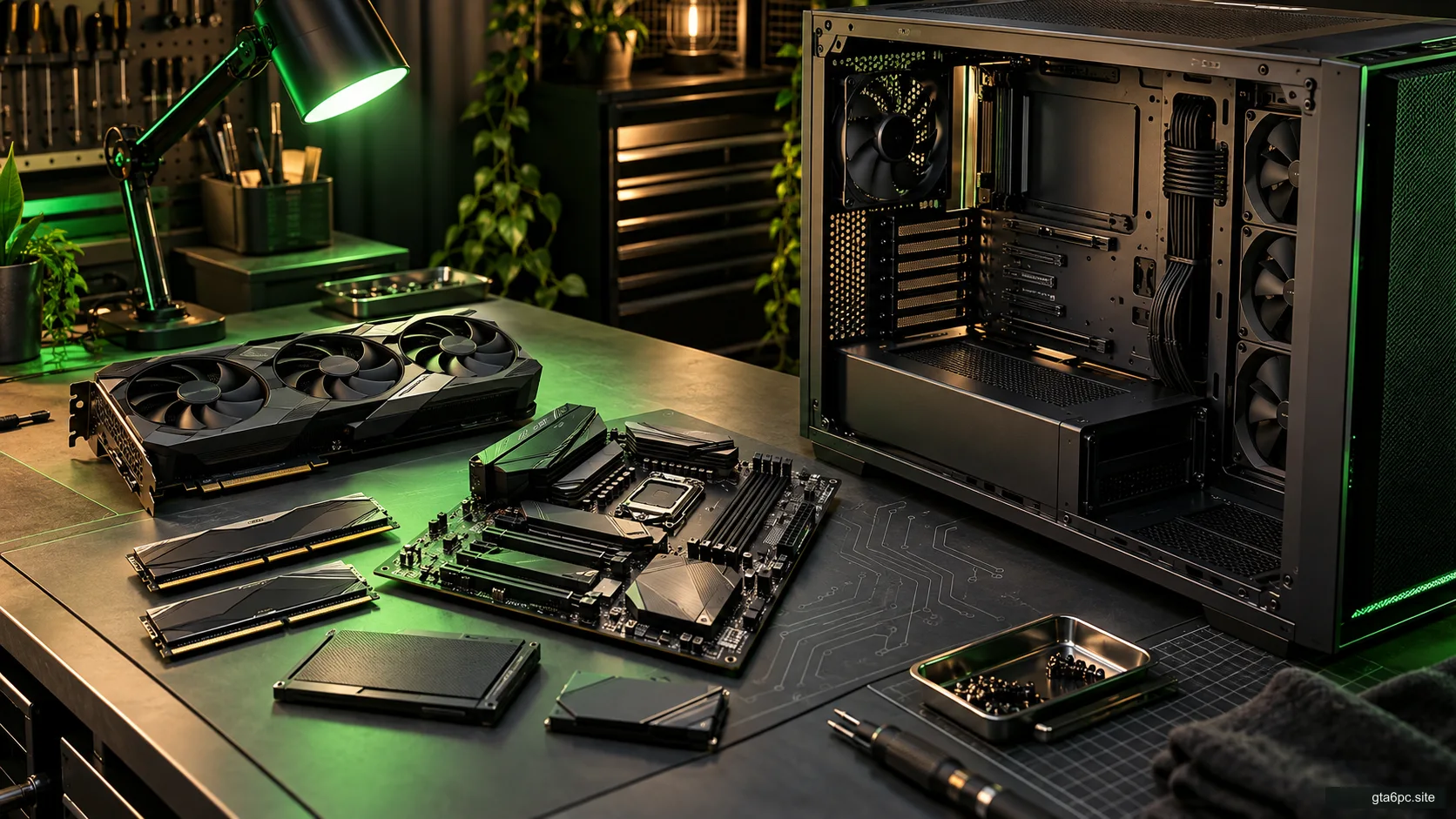
A desktop often allows more part-by-part changes. That does not mean every prebuilt desktop uses standard parts or every future CPU will fit its motherboard.
Check the motherboard’s supported processors, case space, power supply, connectors and memory. A future graphics card may need a different power connection or more room. The GPU clearance guide and PSU cable guide explain why “I can upgrade later” still needs a compatibility check.
For most laptops, replacing the CPU or GPU is not a practical routine upgrade. Some models allow memory or storage changes, while others have soldered memory or limited slots. Specialized modular machines are exceptions you must verify, not a reason to assume ordinary laptops work the same way.
Read the service manual before buying around an upgrade plan. Check how many memory and SSD slots exist, whether they are already occupied, the supported sizes and the service steps. “Upgradable storage” could mean replacing the only drive rather than adding another.
The M.2 compatibility guide helps with slot, drive type and physical fit. A drive that looks right may still be unsuitable for the particular machine.
External graphics is a separate setup, not a free escape hatch
An external GPU can connect through supported hardware and an enclosure on certain systems. It can create a useful desk setup for some owners, but it adds another purchase and another compatibility chain.
Check the exact laptop’s external-graphics support, connection, enclosure, power supply, card dimensions, operating system and driver guidance. A USB-C shape alone is not enough. A dock advertised for monitors is not necessarily an external-GPU enclosure.
Compare the full price and measured behavior of the intended combination. Do not assume the same graphics card will perform identically inside a desktop and across an external connection. Results depend on the workload and setup.
If you are buying both the laptop and enclosure now, compare that total with a desktop plus a simpler portable machine. Either can win for a particular life. The point is to choose deliberately rather than using an expensive future accessory to justify an unsuitable purchase today.
Repairs and ownership can change the value calculation
With a desktop, separate parts may be easier to diagnose or replace, especially in a standard build. However, support can be split between several vendors. A prebuilt system may provide a single support contact but impose its own service terms.
With a laptop, a fault can affect several built-in functions at once, and a major board repair may involve more than one component. Check whether support is local, who pays shipping, whether a courier collects the machine and what information you must provide.
Ask about parts availability and the actual service process. A long warranty label alone does not tell you whether a repair is convenient for your location. Read the applicable terms instead of assuming a worldwide arrangement.
Keep important files backed up regardless of the format. A repair process may require a reset or drive work. More importantly, a hardware warranty is not a backup of your documents.
If you buy used, inspect the condition and rights for that specific sale. For a desktop, the used graphics card checklist covers one of the higher-cost components that can deserve special attention.
Compare electricity with a measured or clearly labelled assumption
Power consumption is another possible ownership cost, but compare the system you will actually use. A component’s rated power is not the same as measured whole-system draw at the wall.
Use this calculation with your own electricity rate:
Cost = average watts ÷ 1,000 × hours used × price per kilowatt-hour.
For a hypothetical difference of 100 W, used for three hours per day over 365 days, the difference is 0.1 × 3 × 365 = 109.5 kWh per year. Multiply that by your local rate. These are sample inputs, not measurements of a laptop or desktop.
Keep the screen in the comparison consistently. If one measurement includes an external monitor and the other does not, the totals answer different questions. Also distinguish gaming, idle and work use if they take up very different portions of the week.
You do not need a complicated forecast. Use this only if the likely difference is large enough to affect your choice, and keep uncertain inputs visibly uncertain.
Three cases that lead to different answers
You travel weekly and need the same files and applications. A laptop can save the cost and effort of maintaining two computers. Choose one that meets your current tasks, is manageable with its charger and has the display and ports you need. Do not overbuy a heavy machine for occasional light games if mobility is the main job.
You mostly play at one desk and want to replace parts gradually. A desktop may suit you better. Check standard components, airflow, current performance and the real upgrade route. Keep a monitor and input devices you already like where that saves money.
You need portable work but want a strong home gaming setup. Compare a gaming laptop with home accessories against a desktop plus a modest portable computer. Include file access, maintenance and the inconvenience of switching machines. If both computers would need expensive software or separate accessories, count that too.
These examples do not assign one answer to everyone. They show which missing question can change the winner.
A short sheet that prevents an expensive mismatch
For each exact candidate, record:
- Where you will use it and how often it moves.
- Complete immediate cost, including required accessories.
- Current-game results at your intended resolution and operating mode.
- Long-session noise and performance evidence.
- Screen, input and charging connections you need.
- Parts you can change and the documentation that proves it.
- Applicable service, return and warranty terms.
- Any remaining assumption about future games or resale value.
If a retailer cannot identify an important configuration detail, leave it unresolved rather than filling it with a favorable guess. Choose a listing or vendor that makes the decision clear.
The right machine has a plain reason to exist in your life. “I move between two places and this complete laptop setup solves both” is a strong reason. So is “I play at one desk, already own a good screen, and can maintain this standard desktop.” Either is better than buying a name and hoping the rest works out.
Sources and references
- Intel: gaming laptop versus desktop. Form-factor, cooling and upgrade differences.
- NVIDIA: GeForce laptop specifications. Laptop GPU designations and documented power ranges; no product performance is inferred here.
- Dell: USB-C charging warning on specified gaming laptops. An example of why charging support must be checked by exact model.
- Lenovo: model-specific removal and replacement resources. An example of manufacturer service information to check before an upgrade.
- Intel: Thunderbolt gaming connections. Supported external-graphics and accessory uses; exact computer support still needs verification.