Start with the slowdown, not the temperature
If your laptop plays well for a few minutes and then becomes much slower, check whether the loss follows heat building up. A hot reading alone does not prove thermal throttling. The useful clue is a repeatable loss of performance while the same work continues, supported by the laptop’s temperature and limit readings.
Thermal throttling means a part reduces its speed to control heat. A power limit means it reduces or holds speed to stay within a power budget. Both can happen in a laptop, sometimes during the same run. They need different responses.
Do not buy a cooling pad, replace thermal paste or turn off protection because an online video says every laptop should stay below one temperature. Your exact CPU, GPU and computer design matter. Begin with a short, safe comparison in a game you already own. It can tell you whether there is a fix worth pursuing and which evidence to give a repair shop.
These tests describe that game and laptop. They cannot establish GTA VI performance. For the wider buying decision, see gaming laptops versus desktops.
Why the first few minutes can look better
A cool laptop has some room to absorb heat. When a game starts, the CPU and GPU may briefly run faster while temperatures and power conditions allow it. As the inside warms up, the system settles into the performance its cooling and power supply can sustain.
Some drop from a brief high speed to a lower steady speed is expected. An advertised boost clock is not a promise that every core will hold that number through an hour of gaming. Loading a different scene can also change clocks without anything being wrong.
The question is whether the laptop settles into useful, steady performance or keeps falling into severe slowdowns, freezes or shutdowns. A burst of high FPS in a menu does not describe sustained gaming. Equally, a lower clock in a quiet menu may simply mean the processor has less work to do.
In many laptops the CPU and GPU also share cooling hardware and parts of a power budget. A CPU-only test can look fine while a game that loads both parts behaves differently. That is why your normal game is a better first investigation than running several heavy stress tools together.
Separate four common patterns
| What you see | What it may mean | Useful next check |
|---|---|---|
| Temperature rises, a thermal-limit signal appears, performance falls during the same scene | Heat is limiting sustained work | Airflow, fan behavior and the model’s thermal guidance |
| Power-limit signal appears while temperature is below the reported thermal limit | The system is enforcing a power budget | Charger, battery mode and maker’s power profile |
| GPU clock drops when its workload drops | The GPU has less work to do | Frame cap, CPU load or a changed scene |
| Short stutters appear while clocks and temperature stay fairly steady | Heat may not be the main cause | Background tasks, storage, memory or game behavior |
This table gives directions, not final diagnoses. A monitoring tool may use different names for these signals, or expose only some of them. A sensor labelled CPU package is not the same thing as a GPU sensor. Compare like with like.
Power limiting is not automatically a fault. A laptop has to balance speed, battery life, charger capacity, fan noise and temperature. Forcing a higher limit without understanding that balance can create a worse problem.
Make a clean starting point
Use the laptop on a hard, stable surface with its vents clear. Put the correct charger into the laptop as the maker intends. For a first comparison, avoid supplying power through an unfamiliar dock, hub or small travel charger.
Check the manufacturer’s normal gaming or performance profile and note which one is active. Windows power mode and the maker’s control app can both influence behavior. A quiet profile may deliberately accept less speed to reduce noise. Record the setting before changing it so you can return to it.
Close downloads, video exports and other work you do not need. Let pending updates finish, then restart if required. Do not disable antivirus or remove system services to get a cleaner graph. Use Task Manager to check whether a known application is doing heavy work before the game starts.
Choose a repeatable game scene. A built-in benchmark can help if it resembles the problem. Otherwise use the same save and follow a short route with similar action. Keep resolution, graphics settings, frame cap and display connection unchanged. The frame-time guide explains how to make repeated runs useful.
Record a small set of readings
Use the laptop maker’s monitoring tools where they expose enough detail. If you need another tool, obtain it from its actual publisher and confirm that it supports your hardware. Read-only monitoring is enough for this task. You do not need voltage controls, automatic tuning or a tool that claims to unlock hidden power.
Try to capture:
- FPS and frame time, which shows how evenly frames arrive.
- CPU and GPU temperature, using the same named sensors throughout.
- CPU and GPU clock readings.
- CPU and GPU load or use.
- Power readings and thermal or power-limit flags, where supported.
- Time since the game started and any clear fan or charger change.
You do not have to understand every sensor. A short note that says “the slowdown begins around minute twelve, GPU use stays high, GPU clock falls and the thermal limit becomes active” is far more useful than a screenshot containing hundreds of unexplained values.
Some tools keep a maximum value or a “was triggered” flag after a brief event. That is different from a limit active at the moment the game slows. Reset recorded peaks before each run where the tool allows it, or use a time log. Read the tool’s help so an old warning does not become a new diagnosis.
Compare a cool run with sustained play
Let the laptop return to its usual idle state before the first run. There is no need to refrigerate it or point extreme airflow at it. You want normal use, not a laboratory trick.
Start your chosen scene and note how it behaves early on. Continue long enough to reproduce your usual slowdown, while watching for abnormal behavior. Then repeat the same scene without changing settings. The warm run shows what happens after the laptop has accumulated heat.
Compare similar parts of the route. An empty road in the first run and a busy fight in the second are different workloads. Avoid treating one brief spike as the whole result. Look for a pattern over several comparable periods.
Repeat on another occasion if the difference was small or the game scene was hard to match. Room conditions matter too. A test in a cool room and a second test in afternoon sun do not isolate a setting change.
Stop if the laptop shuts down repeatedly, a fan makes a new scraping noise, the case or battery area becomes deformed, or there is a burning or chemical smell. Those are repair situations, not reasons to run a longer benchmark. A swollen battery needs the maker’s safety guidance and qualified service.
Read heat and power together
Imagine a laptop that starts at 80 FPS and later holds around 55 FPS in the same scene. Those are invented numbers to show the reasoning.
If its GPU stays busy, temperature approaches its model-specific control point, a thermal-limit signal is active and clocks fall, cooling deserves attention. If moving to an unobstructed surface repeatedly improves the warm run, airflow was part of the problem.
Now imagine another laptop with the same FPS pattern but modest reported temperature and an active power-limit signal. It is running on battery or through a charger that the laptop does not recognize properly. Thermal paste is a poor first response. Check the power path and the manufacturer’s supported profiles.
A third laptop drops clocks because the game reaches a frame cap. FPS stays steady and frame delivery feels smooth. That is not lost performance that needs fixing. The hardware is doing less work because the target is already met.
Several limits can overlap. Improving airflow may remove a thermal limit but leave the normal power limit active. That can be a successful fix even if the monitoring tool still reports that some limit exists.
Why there is no single safe temperature for every laptop
Temperature limits vary between parts and can be affected by the system’s design. Different sensors also measure different places. A CPU core, CPU package, GPU core and GPU hot spot are not interchangeable readings.
Check the exact component’s official specifications and the laptop maker’s guidance. Do not use a temperature quoted for a desktop chip, another GPU or an older laptop as your own machine’s threshold.
The outside case adds another limit: comfort and safe contact. A warm palm rest is not a direct reading of CPU temperature. A case that has changed shape is not a harmless sign of a busy processor. Keep those observations separate.
Thermal protections reduce risk, but they are not permission to ignore blocked vents or a faulty fan. Your goal is stable normal use within the product’s intended conditions, not finding out how close you can get to a shutdown.
Fix the cheapest, safest causes first
Restore normal airflow
Remove fabric, paper and clutter from air intakes and exhausts. Use the original feet or a stable stand that leaves the vents open. A stand that blocks the same intake you are trying to help can make matters worse.
Follow the maker’s instructions for cleaning external vents with the machine shut down. Do not push objects through grilles or blast moisture into them. Internal cleaning depends on the service manual, battery precautions and your ability to work without damaging the machine.
Check the fans and power supply
Run the manufacturer’s fan diagnostic if one exists for your model. A passing test is useful, but it does not prove every cooling surface is clear or that heat transfer is perfect. Record any error code rather than repeatedly forcing the fan through a test it fails.
Use the supported charger and check whether the system reports its expected type or wattage. Inspect the cable and connector without opening the charger. If the laptop charges slowly or loses battery while plugged in, report that alongside the performance problem. Do not solve it by buying a charger with an impressive wattage but the wrong electrical or connection requirements.
Reduce unnecessary work
An FPS cap near a target you can hold can reduce wasted work in scenes where the laptop would otherwise render much faster. Lowering selected settings can also help, but the right setting depends on the part under load. Our graphics settings guide explains the tradeoffs.
Compare the same warm scene after one change. If the laptop becomes quieter and holds a smooth target you like, that may be better than chasing a brief high FPS number.
Cooling pads, updates and internal repairs
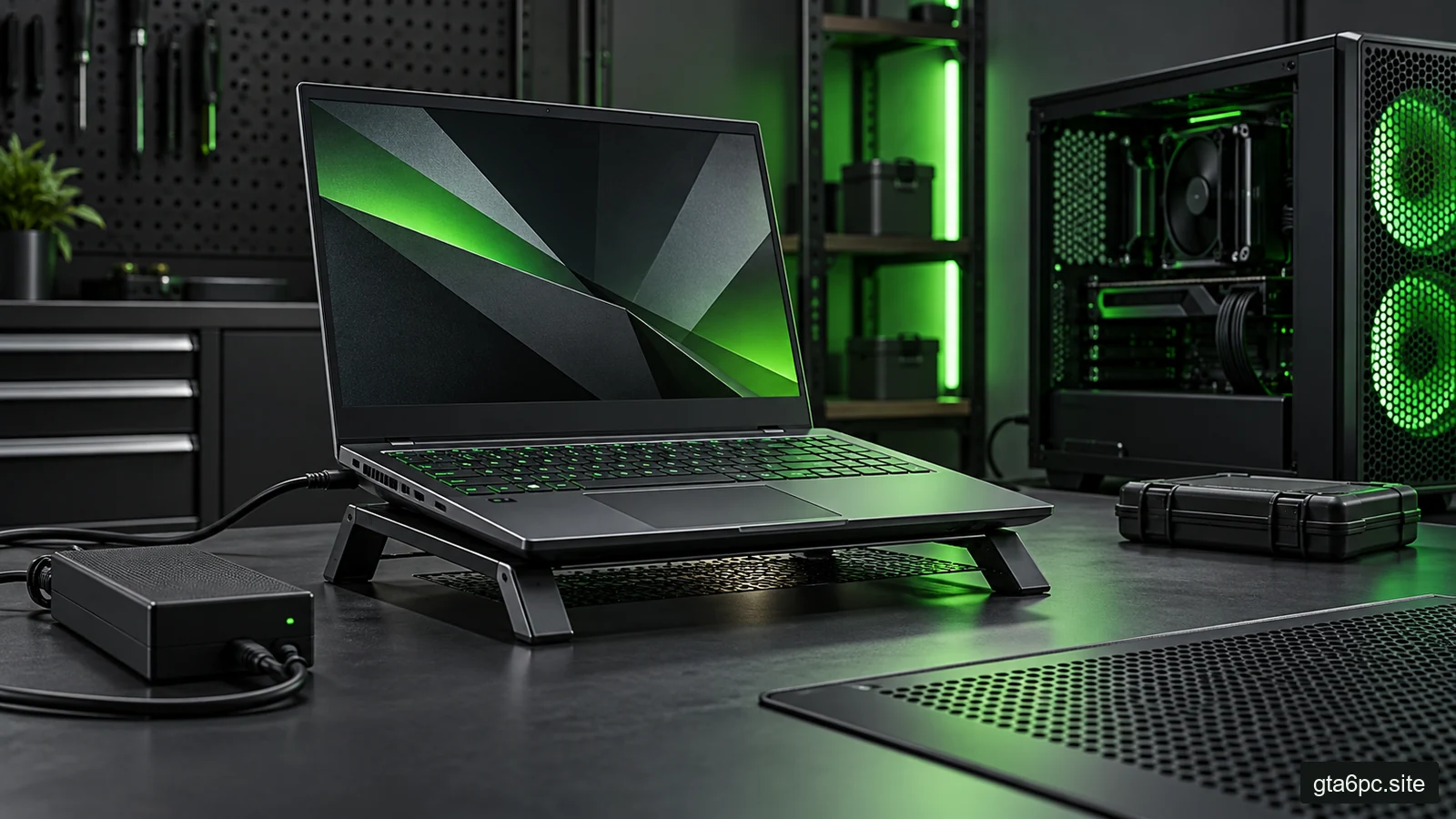
A cooling pad may help a laptop whose intake layout suits it. It may do little for another design. Test the sustained result, fan noise and comfort before assuming it solves the problem. A plain stand can be enough when the original problem was a blocked intake.
Look for model-specific updates from the laptop maker when their release notes address fans, power behavior or stability. A firmware update is a separate maintenance step, not something to perform halfway through a comparison. Follow its power and recovery instructions. Do not install another model’s BIOS or a modified firmware file.
Replacing thermal paste is not a harmless first experiment. Opening the cooling system may involve the battery, fragile connectors, screw order and pads of specific thickness. Some machines use materials that should not be replaced with ordinary paste. A poor repair can worsen contact or damage other parts.
If airflow is clear, the correct power supply is recognized, normal profiles are used and sustained performance still collapses, service may be justified. Give the technician your exact model, repeatable scene, approximate time to slowdown, temperature and limit pattern, and any fan error. That helps them investigate the cause instead of selling a general cleaning service by default.
Make the result useful for your next decision
Finish with one plain statement: what repeats, what changed it, and what still remains uncertain. For example: “The laptop slows only on the quiet profile; its normal gaming profile holds the warm run steadily.” Or: “The warm run still loses speed with clear vents, and the fan diagnostic reports an error.”
The first result may require no purchase. The second supports a repair decision. If the laptop performs normally but cannot meet your chosen target, its sustained capability may simply be too low for that game and settings. That is a different problem from broken cooling.
Use upgrade planning before spending money. A cooling accessory cannot turn a lower-power laptop into a desktop with a larger GPU. But restoring the performance you already paid for can be the cheapest useful improvement of all.
Sources and references
- Intel: what throttling means and why laptop limits depend on the computer maker.
- Intel: processor temperature limits and thermal protection.
- Dell: overheating, fan behavior, airflow checks and stop-use conditions. Dell-specific tools apply to supported Dell models.