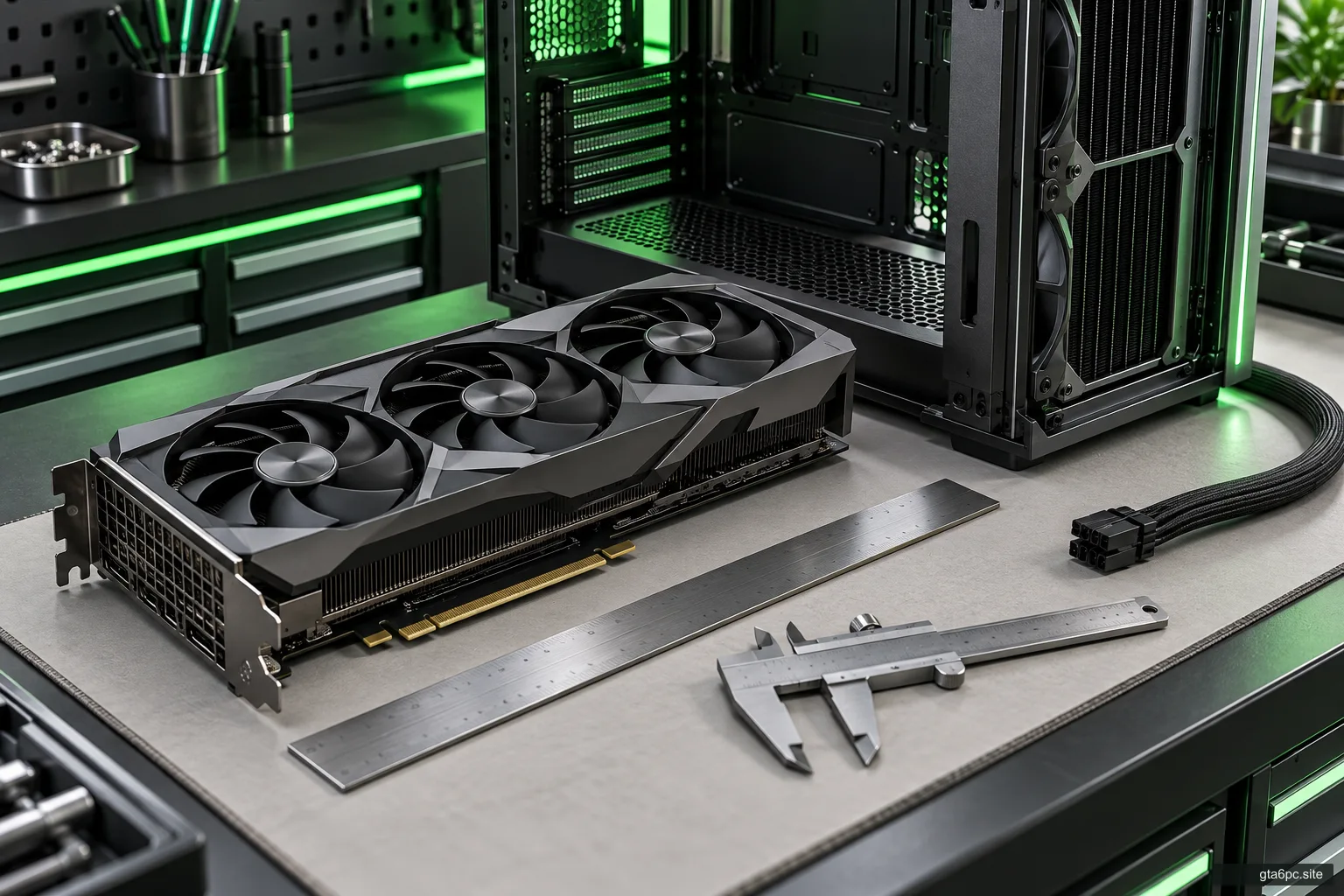
Start with the PSU model, not just its wattage
Before installing another graphics card, identify your exact power supply and the card’s required connection. A label such as “750 W” does not tell you which modular cables are compatible or how the card should be connected.
The most important rule is simple: modular PSU cables are not universal. A cable from another supply can fit a socket while having a different electrical arrangement. Compatibility needs the manufacturer’s explicit confirmation for the models involved.
This includes some supplies sold under the same brand. Keep the original cables with their PSU and do not treat a drawer of similar-looking leads as a shared parts box.
This guide helps you prepare a supported upgrade. It does not set a GTA VI power-supply requirement. Game-specific claims belong to the official PC requirements record.
What the power supply actually does
The PSU changes mains electricity into the power the computer’s components use. Different outputs and connectors feed the motherboard, processor, graphics card and other devices.
Wattage describes one part of the supply’s capability. Connectors, supported cables, installation instructions and the demands of the complete system also matter. A graphics card is not the only component drawing power.
Efficiency labels describe efficiency under their defined tests; they are not a complete verdict on cable compatibility or whether a supply suits your machine. Likewise, a familiar brand name does not replace the exact model information.
If the PSU is part of a prebuilt, use that computer’s documentation too. Some machines have layouts or connectors that differ from a standard retail desktop build.
Find the label without opening the PSU
Shut down and disconnect the computer, then follow the case or computer maker’s access procedure. Find the accessible PSU label or the original documentation.
Record brand, exact model, rated output and any revision needed to use the maker’s compatibility table. A purchase invoice or system parts list can help, but confirm that it describes the supply currently installed.
Do not open the PSU housing. The information you need should come from its label and documentation, not internal inspection. If the label is inaccessible without work you cannot perform confidently, get appropriate help or use verified system records.
Add the model to your PC specs note. A clear model entry saves you from repeating this investigation whenever another card catches your attention.
Identify the cable’s job
A typical desktop uses several kinds of power connection. The motherboard’s large ATX connector, the CPU power connector and the graphics-card connector have different roles.
| Cable or connector | Typical purpose | What to check |
|---|---|---|
| ATX motherboard power | Main motherboard supply | Board and PSU instructions |
| CPU or EPS power | Processor power through the motherboard | Correct CPU/EPS cable and socket |
| PCIe GPU power | Graphics-card power where specified | Exact card connection instructions |
| Modern 16-pin GPU connection | Supported graphics-card power on applicable models | Card, PSU and cable guidance |
| SATA power | Drives and supported accessories | Device and PSU instructions |
A CPU cable and a GPU cable are not interchangeable just because their plugs look similar. Labels such as CPU, EPS or PCIe help identify intended use, but follow the exact supply’s manual as well.
Do not force a connector or rely only on its colour. A correct connection should follow the documented part and orientation. If something does not match, stop and resolve the mismatch.
Check modular compatibility on the PSU side
A modular PSU lets you disconnect some or all leads from the supply. The component-side connector may look familiar while the PSU-side wiring differs between products.
Use the cables supplied for the exact PSU unless the maker approves another specific cable. For a replacement, extension or accessory, read whether it is intended for that purpose and compatible with the parts involved.
Do not mistake an extension for a replacement PSU cable. An extension joins an existing appropriate lead; a replacement plugs directly into the supply. Their roles and compatibility conditions differ.
Manufacturer charts can use cable families or types. Match the exact PSU model to the chart, then match the proposed cable to the approved family. “Same brand” is not a complete match.
If the model or revision is missing from the chart, obtain a model-specific answer from the maker before connection. The cost of resolving that detail is small compared with the consequences of guessing.
Read the graphics card’s own instructions
Find the exact card’s installation guide. Record its power connectors, supported connection options and any supply recommendation under the maker’s stated conditions.
A system-power recommendation may assume a particular configuration. Check how it applies to the rest of your machine rather than treating it as a precise measurement of your own total load.
If the guide requires separate leads for particular connectors, follow that requirement. Do not assume a cable with multiple plugs is always an approved substitute for separate connections. Equally, do not invent a universal cable arrangement for cards whose instructions differ.
Adapters are also model-specific. Use only the supported adapter and connection arrangement. Having enough loose plugs in the case does not establish that the complete path is approved.
Check seating, strain and space
The connector must be inserted and secured as instructed. Check alignment, the latch where applicable and whether the cable route pulls the connector away from its intended position.
For modern GPU connections, follow the exact maker’s guidance on seating and bend clearance. Avoid a tight bend directly against the connector or pressure from the side panel. Do not use the panel to force the cable into place.
The graphics-card clearance guide includes the power route in the fit check. A card that fits the slot but cannot accept a supported cable route is not a complete successful installation.
Check the route before buying a shorter cable, angled accessory or adapter. Such accessories need their own compatibility evidence. A more convenient shape is not sufficient proof that an accessory is suitable.
What if the card needs more than your current PSU supports?
Compare the complete options. A different supported card may meet your present target without a PSU replacement. A new supply may be justified if the selected path has a clear benefit and fits the case and system.
If replacing the PSU, plan to replace its modular leads with the new supply’s appropriate leads. Do not leave old cables in place merely to save rerouting time unless the manufacturer explicitly confirms that combination.
Check PSU dimensions, mounting, cable length and any prebuilt constraints. A technically suitable retail supply can still be a poor physical fit for a particular enclosure.
Include the supply, supported cables and installation work in the upgrade-cost comparison. The graphics card’s price alone does not describe the path.
Used supplies and missing cables need extra clarity
A used PSU without its original leads can create a compatibility problem before you even install it. Identify the exact model and verify that correct replacement leads are available.
Do not buy a generic cable set on appearance alone. A listing should name the compatible PSU models or approved cable family, with support from the relevant manufacturer.
If you cannot verify what leads came with a used supply, keep them disconnected until resolved. Mark the model on stored cable sets so they stay associated with the correct supply later.
A low purchase price is not useful if you must guess the electrical connection or cannot obtain the supported parts. Compare the finished usable setup, including any replacement cables.
A short checklist before powering on
Confirm the PSU model, card model and supported cable solution. Check that the connectors are in the right component and PSU sockets. Follow the manuals for the number of leads and seating.
Then check that the case route is clear and that no panel or support bracket strains the connector. Review the installation before reconnecting power.
If there is visible damage, an unexplained mismatch, overheating signs or an uncertain lead, stop and resolve it through the manufacturer or suitable assistance. Do not keep retrying an unresolved connection as a performance test.
The aim is a simple result: you can name every part of the power path and show why it is supported. When one part remains unknown, the next step is information rather than connection.