RAM and VRAM are different kinds of working space
RAM is the computer’s main working memory. Windows, your game and other applications use it to keep information ready while they run. VRAM is graphics memory used by the GPU for work such as textures and drawing the image.
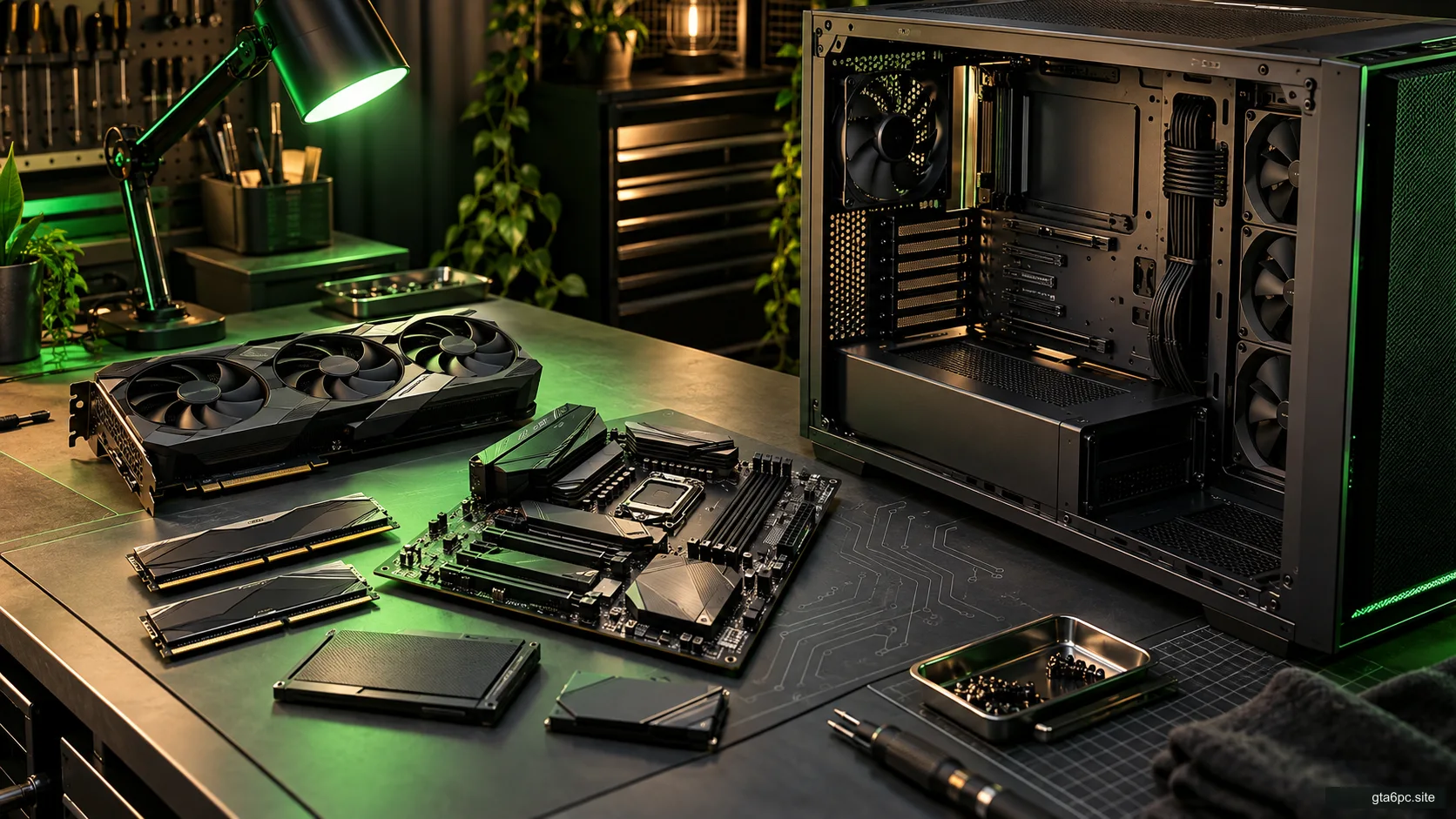
Think of a workshop with a main workbench and a separate graphics station. Making the main bench larger does not enlarge the graphics station’s own bench. That is why adding system RAM does not turn an 8 GB graphics card into a 16 GB graphics card.
Storage is different again. An SSD keeps files when you switch the PC off. RAM is temporary working space. Buying a larger SSD does not directly increase RAM, and installing more RAM does not create space for more game downloads.
Understanding those three jobs prevents a surprisingly common buying mistake: purchasing “more memory” without knowing which kind of memory the problem involves.
| Resource | Main job | Usual upgrade route |
|---|---|---|
| System RAM | Working space for Windows, games and applications | Supported memory modules, if the computer allows changes |
| Dedicated VRAM | Local working memory on a dedicated graphics card | Usually replace the graphics card |
| Shared graphics memory | System memory available to graphics under the platform’s rules | Depends on the complete system and memory setup |
| SSD storage | Keeps applications, games and files | Supported storage expansion or replacement |
Why graphics memory is needed
A game needs image data available while drawing each frame. Textures, image buffers and other resources take space. The amount used depends on the game and settings, not just the number of objects you can see.
Higher texture settings can increase graphics memory demand. Higher rendering resolution can increase the space needed for some image buffers. Other features can change the workload too. That is why two players with the same GPU may see different memory use at different settings.
A larger VRAM amount can help when local memory capacity is a real limit. It does not make the GPU’s processing work disappear. A card still needs to draw the scene, perform calculations and support the required features.
This is the reason not to choose a graphics card by VRAM alone. A slower card with more memory may still be slower for your workload. A faster card with too little memory for the settings you insist on can have a different problem. Compare the whole card at your actual target.
What happens when system RAM is under pressure?
Windows manages memory across applications. When a workload needs more usable working space than is comfortably available, some information may have to move between memory and storage. That work can contribute to delays, but a single high usage number does not establish the cause of every stutter.
The useful question is whether the symptom repeats and changes with the workload. Does your game run well by itself but struggle with many browser tabs and recording software open? Does reducing that extra work make a consistent difference?
Try the same scene with the same game settings. Compare the full workload with a lighter background workload. Keep important applications and security protections in place; the aim is a controlled comparison, not disabling everything indiscriminately.
If the improvement repeats and memory pressure changes with it, investigate system RAM and the competing applications. If it does not, continue checking. Buying RAM solely because a bar looks nearly full may solve nothing.
What happens when VRAM is under pressure?
A game may need to move graphics resources or reduce what it keeps locally when demand exceeds available local memory. The visible result depends on the game, driver and hardware. Possible symptoms can include uneven delivery, delayed textures or a need to lower certain settings.
Those symptoms are clues rather than a diagnosis. A game may also stutter because of CPU work, shader preparation, storage, background activity or other issues.
For a practical test, keep the same scene, resolution and other settings. Lower texture quality one step if the game allows it, then repeat the run. Watch both the symptom and memory behaviour. If the change repeatedly helps, texture-related demand deserves attention.
Then test rendering resolution separately. Changing several settings at once may improve performance, but it makes the cause harder to understand. The frame-time method gives you a repeatable way to compare the results.
Dedicated and shared memory in Windows
Task Manager can show dedicated GPU memory and shared GPU memory. They are not two identical supplies you should simply add together and call “VRAM.”
Dedicated memory on a discrete graphics card is physically associated with that card. Shared memory comes from system RAM and is managed according to the platform. Its displayed limit is not a guarantee that borrowing that amount has the same speed or behaviour as local graphics memory.
Integrated graphics commonly use system RAM because they do not have a separate dedicated memory bank like a typical desktop graphics card. In that case, the amount and arrangement of system RAM may affect both the CPU and graphics workload.
Check the exact hardware before making broad conclusions. Some platforms offer supported controls for shared graphics memory; that does not make setting the largest possible value a universal performance fix. Follow the system manufacturer’s guidance and judge the workload rather than chasing a larger displayed number.
How to look at the right numbers
Open Task Manager and use the Performance section. Identify the GPU running your game, especially on a laptop that has integrated and dedicated graphics. Then inspect the GPU memory information and the system Memory page during the relevant workload.
A snapshot after closing the game can miss what happened during play. Use a repeatable section and record observations at the same point. If a monitoring tool logs memory alongside frame times, keep its version and metric definitions with the result.
Do not add every process’s graphics memory figure to invent a total. Shared resources can appear under multiple processes. Use the GPU’s overall view for the broader picture, then inspect processes when you need to understand a specific application.
Also distinguish memory reserved or allocated from memory pressure that causes a problem. Caching can be useful. A larger allocation is not automatically evidence that a component must be replaced.
Before buying more system RAM
Identify the motherboard or complete computer model, the supported memory generation and the current modules. DDR4 and DDR5 are different standards. Desktop and laptop memory formats can differ, and some laptops have memory soldered to the board.
Check the available slots and supported capacity. A free-looking slot is not enough to settle the supported arrangement. Consult the actual manual and memory guidance for your platform.
Mixing kits can also introduce uncertainty. Two kits sold with the same headline speed are not a guarantee that their combined configuration will run at that speed. If you need a specific result, choose a supported arrangement rather than assuming four modules will behave like a tested two-module kit.
Keep the purchase practical. A supported RAM upgrade may be worthwhile for a repeated multitasking problem. Changing the whole platform solely to obtain another memory generation is a much larger decision and needs a complete cost comparison.
Before replacing the graphics card for more VRAM
Check measured performance in the games and settings you care about. Include the candidate card’s processing capability and feature support, not just its memory amount.
Then check card clearance and power supply cables. More VRAM does not make an oversized or electrically unsupported card a suitable purchase.
If lowering a texture setting solves the problem with an acceptable image, keeping the current card may be a reasonable choice. If the settings you value remain out of reach and evidence points to the GPU, compare the complete replacement path through the upgrade guide.
A dedicated graphics card’s VRAM is not normally expanded by inserting extra memory modules into the motherboard. Treat promises to “download more VRAM” or turn shared memory into equivalent dedicated memory with particular care.
Does GTA 6 need more RAM or more VRAM?
The official GTA VI PC requirements record does not give us verified figures in the sources checked October 14, 2026. This general explanation cannot supply those missing numbers.
When a PC sheet exists, compare system RAM with system RAM and the graphics specification with your graphics hardware. Do not combine the two amounts. Then use actual PC tests to judge your desired settings.
For now, choose an upgrade from a problem you can demonstrate. “My current game improves when I reduce these background applications” and “my repeated texture test changes the stutter” are useful observations. “I probably need more memory for GTA VI” leaves the most important question unanswered.