The right storage plan starts with your real library
You do not need GTA VI’s install size to decide whether your current storage is inconvenient. If you remove a game whenever you want to install another, or Windows and your active library leave little room to work, you already have a problem you can measure.
Start with the drive you intend to use. Record its free space, the games you want to retain and the other files or applications that belong there. Then choose a working margin for updates and ordinary use.
Any future GTA VI allocation should remain a clearly labelled scenario. The official PC requirements guide does not provide a verified installation size in the sources checked October 14, 2026. A guess can help explore options, but it must not become an alleged requirement.
Check the actual installation volume
Open Windows Settings > System > Storage to see storage use. You can also open This PC in File Explorer and inspect the drives. Make sure you record the volume that would hold the installation.
A drive letter such as D: identifies a volume. It is not always a complete physical disk. The PC specs tutorial explains how to connect that letter with the device behind it when you need an expansion decision.
Do not simply add free space from every drive. A game library on one volume does not automatically borrow unused space from another. That second drive helps when you select it as a supported destination or move the library through a supported method.
Record capacity and free space separately. Capacity tells you the size of the volume. Free space tells you what remains available after current files. Mixing them leads to counting the same library twice.
Why a 1 TB drive may show a smaller number
Storage labels and software displays can use different counting conventions. Drive manufacturers commonly use decimal units, while some software calculates capacities using binary units even when its label says GB. Partitions and reserved areas can reduce the space shown for a particular volume as well.
As a simple conversion, one trillion bytes is about 931 GiB when counted in binary units. That difference does not mean files have mysteriously disappeared from a new 1 TB drive.
For a practical budget, you do not have to convert every specification. Use the space Windows shows on the target volume, and keep the same convention for all inputs. Do not compare a manufacturer’s total drive capacity with a free-space figure as though they were the same measurement.
If a drive shows an unexpectedly small volume, inspect the layout rather than formatting it. There may be additional partitions or unallocated space. An inventory check should not change those structures.
Split games into active, occasional and replaceable
Your active games are the ones you want available now. Occasional games are worth keeping if reinstalling would be annoying. Replaceable installs are games you are comfortable downloading again.
This is a convenience decision. A player with fast, reliable downloads may keep a small active library. Someone with a slow connection or limited data may value local copies much more highly.
Review actual installation sizes through the launcher or Windows. Include downloadable content you use and other large applications on the same volume. Do not count only the main game if your routine includes recordings, mods or project files that share the drive.
Keep personal material separate in your thinking. Reinstallable game files are not the same as saves, screenshots or work documents you cannot replace. Before removing a library, confirm where important files live and what backup actually covers them.
Choose a reserve for how you use the PC
Updates can need temporary space as well as room for the finished files. Different launchers and patches behave differently. There is no single honest reserve that guarantees every update will fit.
Choose a margin based on your software and normal usage. A system drive may need room for Windows work and applications as well as games. A dedicated games volume may have different demands. Check any stated free-space requirement before a large update.
A percentage can be a useful personal planning rule, but it is not a universal game requirement. Likewise, a round figure you enter into a tool is your chosen margin, not an official GTA VI condition.
Keep the reserve visible as its own line. That makes it easier to adjust when a launcher provides specific information instead of hiding it inside an inflated game-size guess.
Work through an example without double counting
Imagine that the installation volume has 420 GB free. You plan 120 GB of other installs, want to keep an 80 GB working reserve and choose a 150 GB future-game scenario. The planned balance is 70 GB.
Those figures are hypothetical. The 150 GB allocation is not a claim about GTA VI. The example shows how separate inputs make the choice understandable.
Because the starting point is free space, existing installed games are already accounted for. Do not subtract them again. If you start with total capacity instead, you must first subtract current usage, then use the same planning categories.
The storage budget tutorial develops this calculation, including what a negative result means. The storage tool performs it with your editable values.
Try the cheaper adjustments before expansion
Use the launcher’s supported uninstall or library-move controls. Check where saves and personal files are stored before removing anything. Some games support cloud saves, but that should be verified for the game and account rather than assumed.
Windows cleanup tools can help identify temporary files, but read the selected categories. Downloads or other personal folders are not automatically disposable. Review what an action will remove before using it.
Moving a game to another drive may solve the local space problem. Check whether that drive and connection are suitable for the application. An external drive introduces connection and availability considerations; a disconnected library cannot be used until it is available again.
If you archive rarely played games, include the restore cost in your decision. Time, bandwidth and convenience matter alongside the price of storage.
Choose the upgrade route your computer supports
Adding a drive is different from replacing the current drive. An unused supported slot can let you keep the operating system and add library space. Replacing the only internal drive may require cloning or reinstalling the operating system.
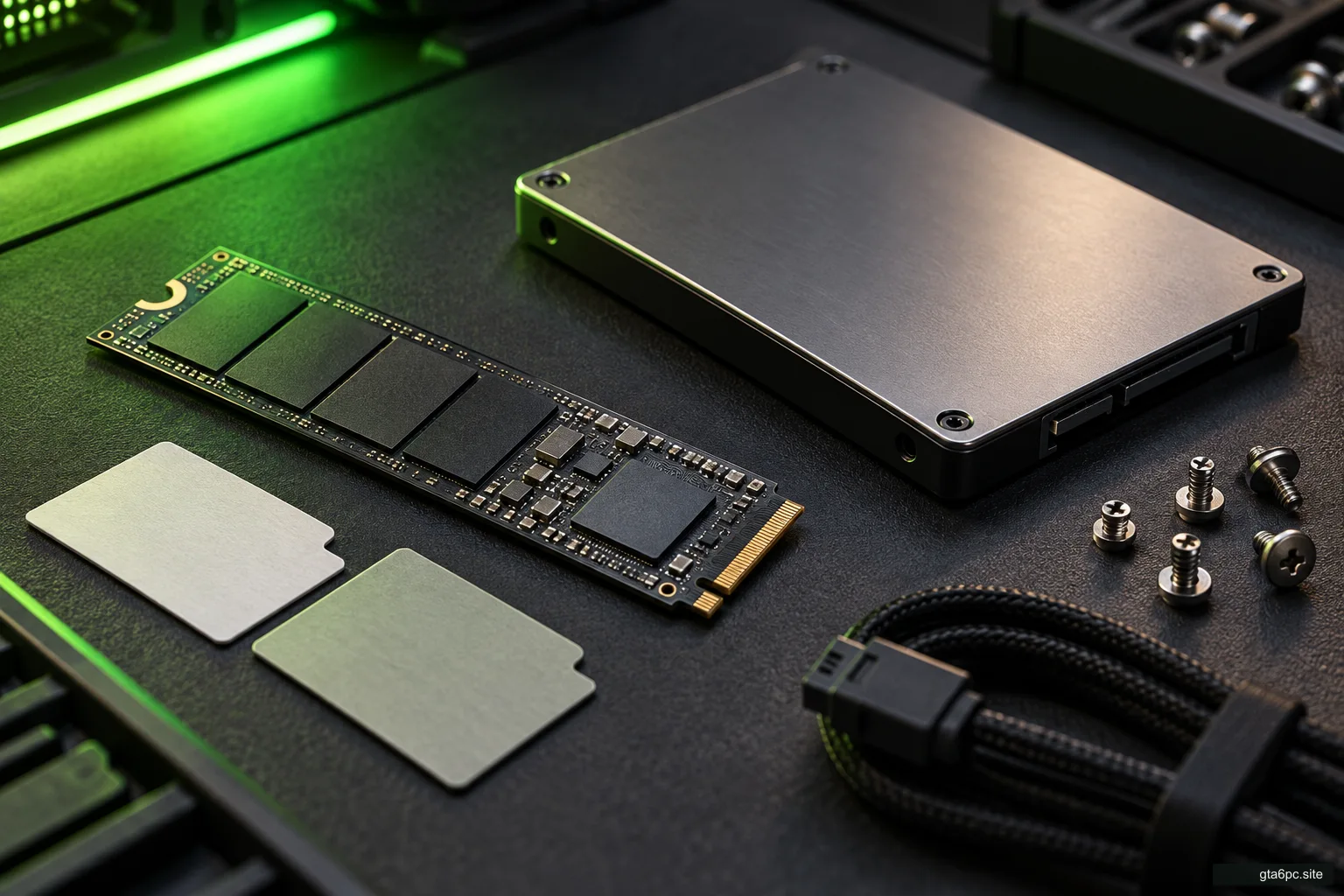
Check M.2 slot compatibility before buying. M.2 describes the physical format; the slot must also support the drive’s interface, size and installation conditions. A heat spreader or another component may limit clearance.
A supported SATA drive may be another option. A laptop or compact PC may allow only one particular drive arrangement. Use the exact machine’s documentation rather than a general shopping guide.
The fastest advertised SSD is not automatically the most useful upgrade. If capacity and convenience are the real problems, compare supported options that solve them. Do not expect a sequential speed figure to predict every loading time or frame-rate result.
Plan migration before the new drive arrives
Decide whether the new drive will hold extra games, replace a data volume or become the system drive. That determines the work required.
For a new library drive, plan the supported launcher move or reinstall. For a system replacement, check the actual cloning or installation method, capacity conditions and recovery path. Back up irreplaceable files before changes.
Keep the old installation available until the new arrangement is confirmed where practical. Check that the intended game opens, that saves are present and that applications use the correct destination. A successful file copy does not prove every launcher path and account condition is resolved.
Installation help and downtime belong in the total cost. The upgrade guide helps compare a straightforward expansion with a more involved replacement.
A plan that remains useful when GTA VI news changes
Keep one short record: target volume, measured free space, retained library, planned additions, chosen reserve and any future-game scenario. Note when the space was measured.
Recheck it after large installs, removals or migrations. A library change can affect your plan even when no game news has appeared.
When official GTA VI PC storage information exists, replace the scenario with the verified figure and any stated drive conditions. You will have a clear calculation ready, rather than a purchase based on an old guess.